
Roleplaying Analytics
The "Analytics" section collects all results from completed roleplaying. Here, you can see which employees have completed which scenarios, their results, and when they did it. This helps quickly assess team progress and target training efforts precisely.
What You See on the Page
The section consists of two main parts:
Filter panel — for configuring data.
Results table — for viewing statistics and outcomes.
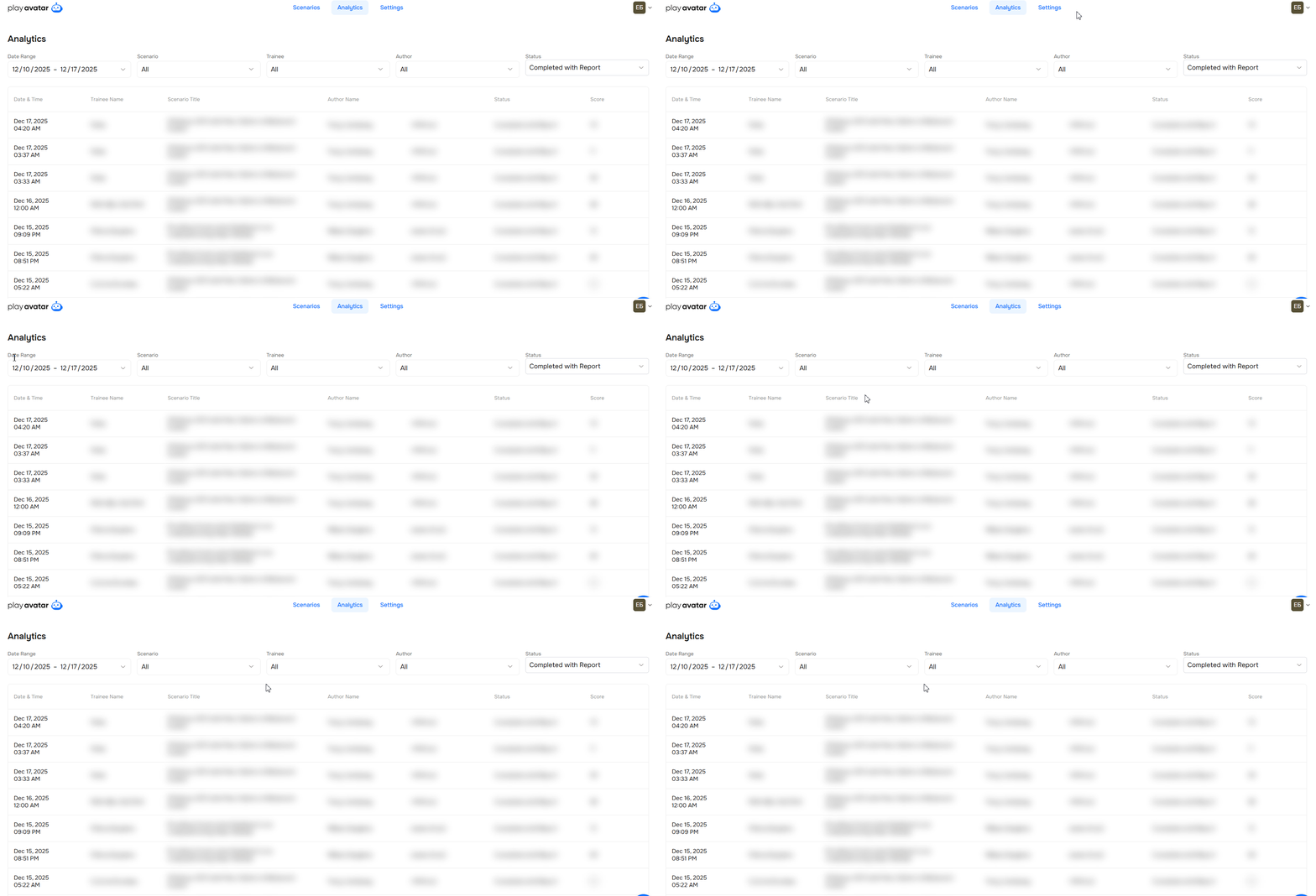
Filter Panel
Filters help customize the display of data in the results table.

Each filter serves a specific purpose:
| Filter | Description |
|---|---|
Date Range | Collects information for a specific date or period. |
Scenario | Helps evaluate how well the team handled a specific scenario and shows its popularity — how many employees completed it. |
Trainee | Shows the results of the selected employee across all completed scenarios. |
Author | Shows all scenarios created by selected authors. Helps quickly assess whether an author creates enough scenarios and which ones are most in demand. |
Status | Indicates the current stage of the roleplaying completion. Main statuses:
|
Results Table
The table displays all roleplay completion attempts. Each row represents one attempt.
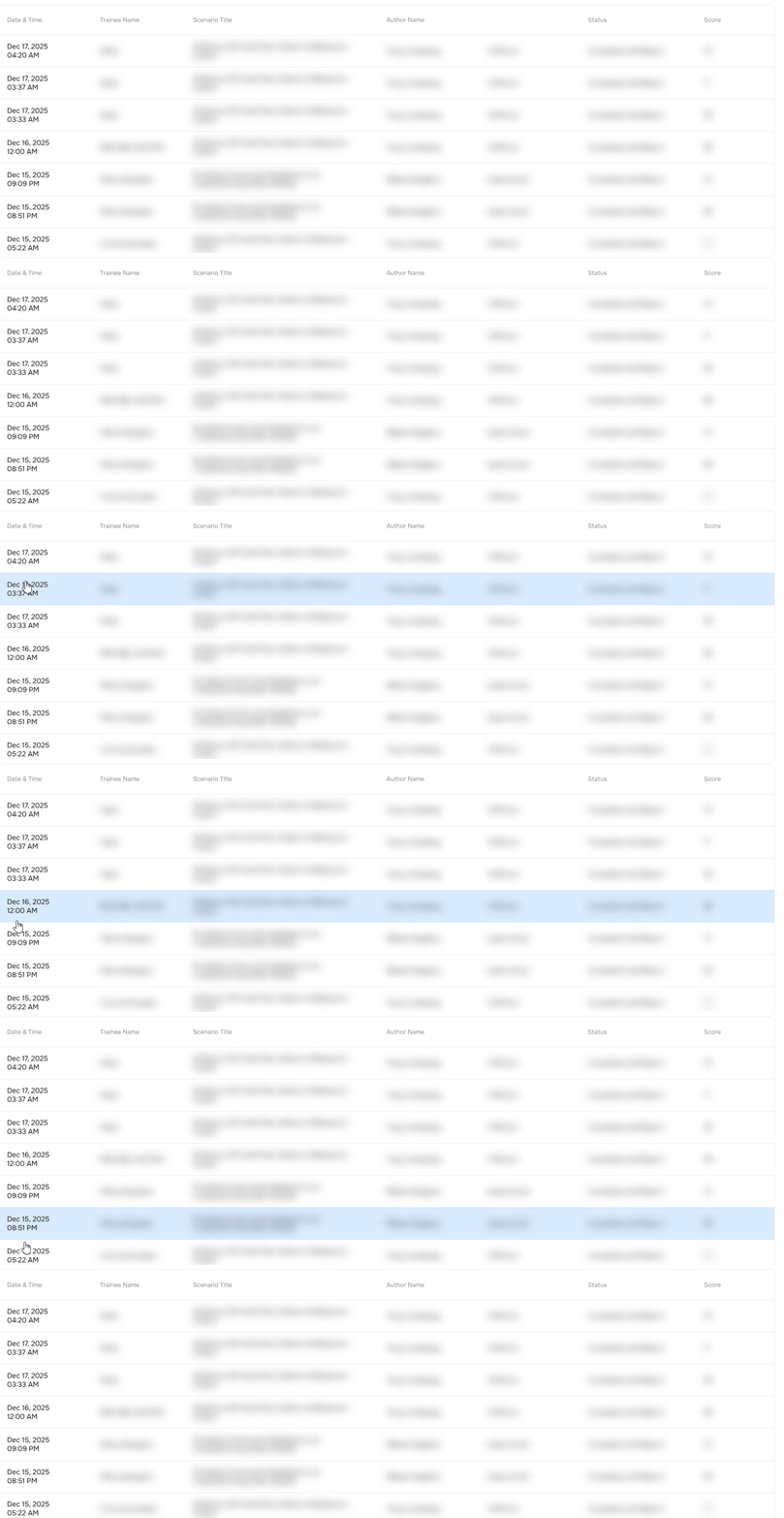
Columns in the Table
| Column Name | Description |
|---|---|
| Date & Time | Date and time the roleplay was completed. |
| Trainee Name | First and last name of the employee who completed the roleplaying. |
Scenario Title | Name of the roleplaying the employee completed. |
| Author Name | First and last name of the scenario creator. |
Status | Status under which the roleplaying was closed. |
Score | Overall AI-calculated score the employee received for completing the roleplaying. |
Report on Roleplaying Completion
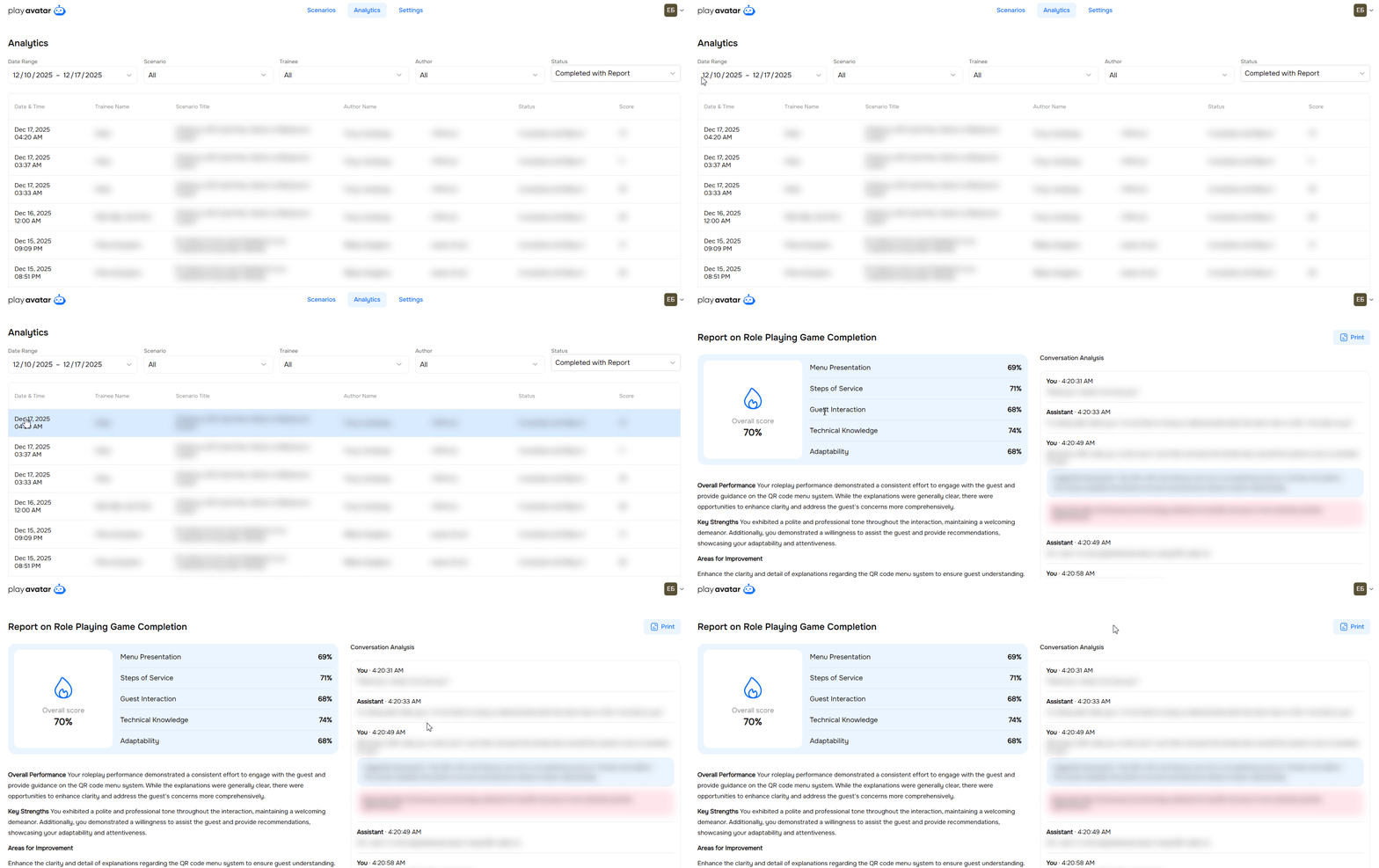
To view a detailed report on how an employee completed a scenario, click on a row in the table. A full report on the roleplaying will open.
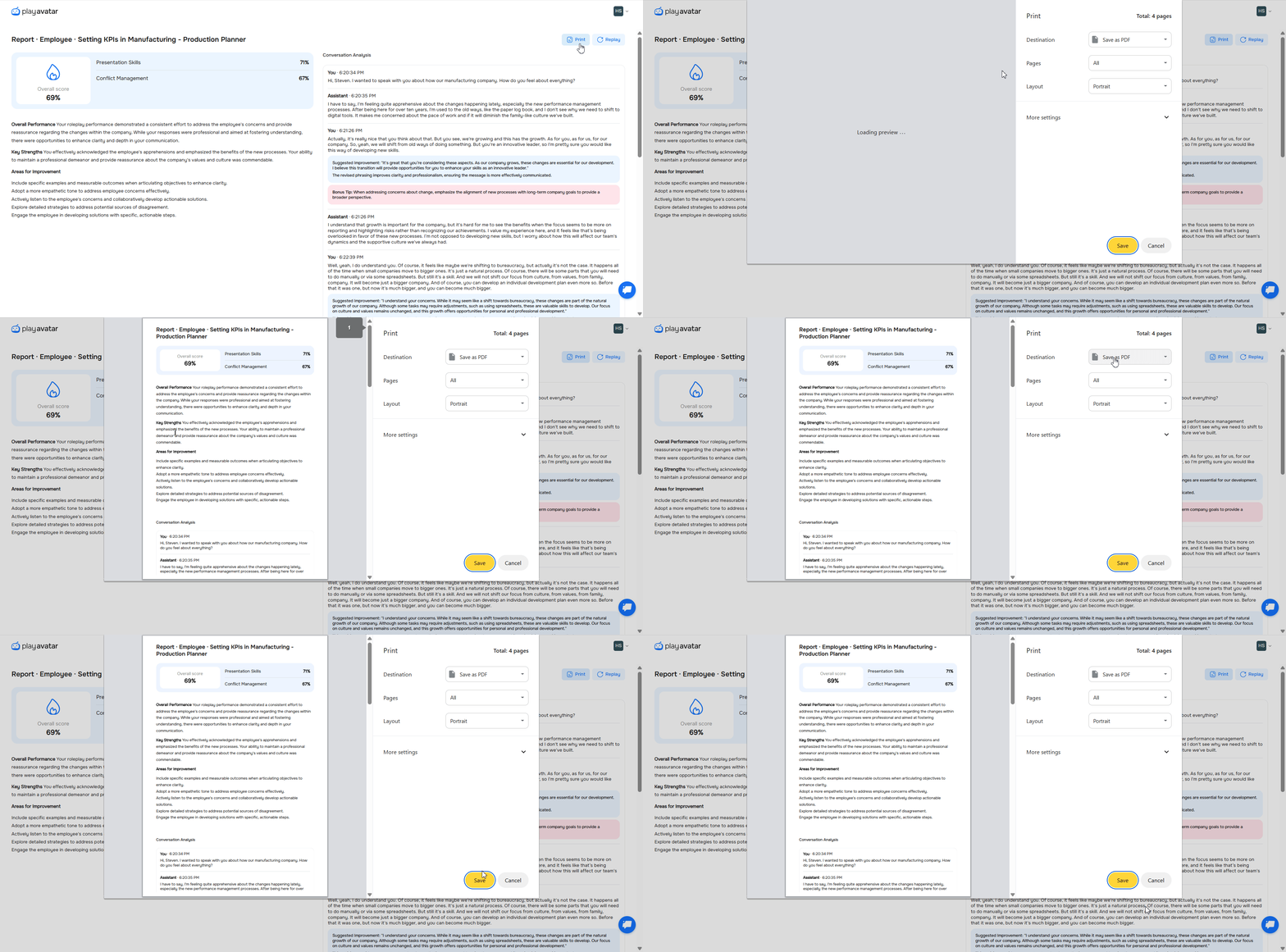
Click the "Print" button. You will be able to save the report as a PDF or print it for yourself, your coach, or your supervisor.
Need Help
Write to us in the chat — we're always happy to help 💬