
Tracking Subscription Credits in the "Settings" Section
⚠️ The "Settings" section can only be accessed by users with the "Administrator" role.
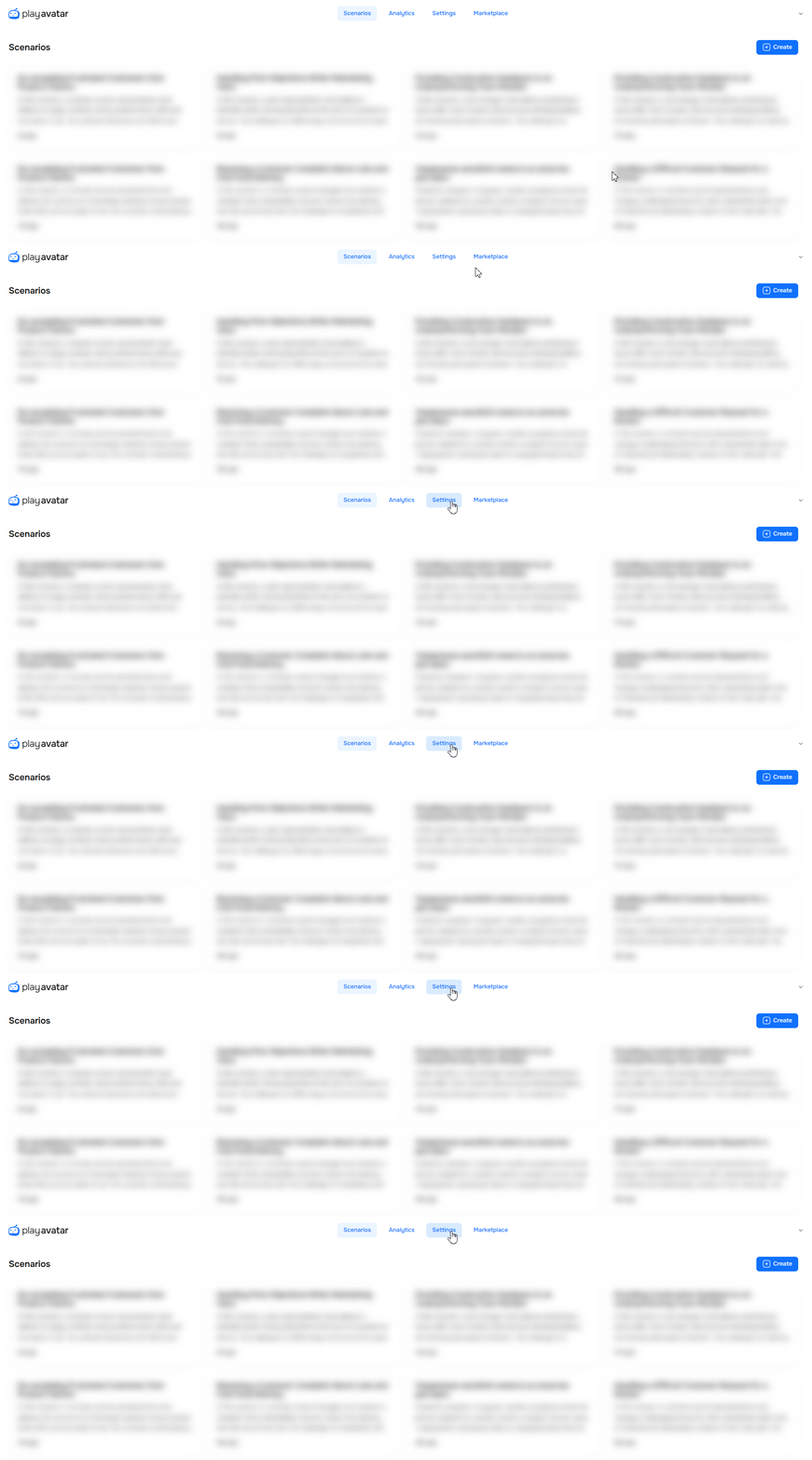
To open this section, select the “Settings” tab on the main page that lists all scenarios.
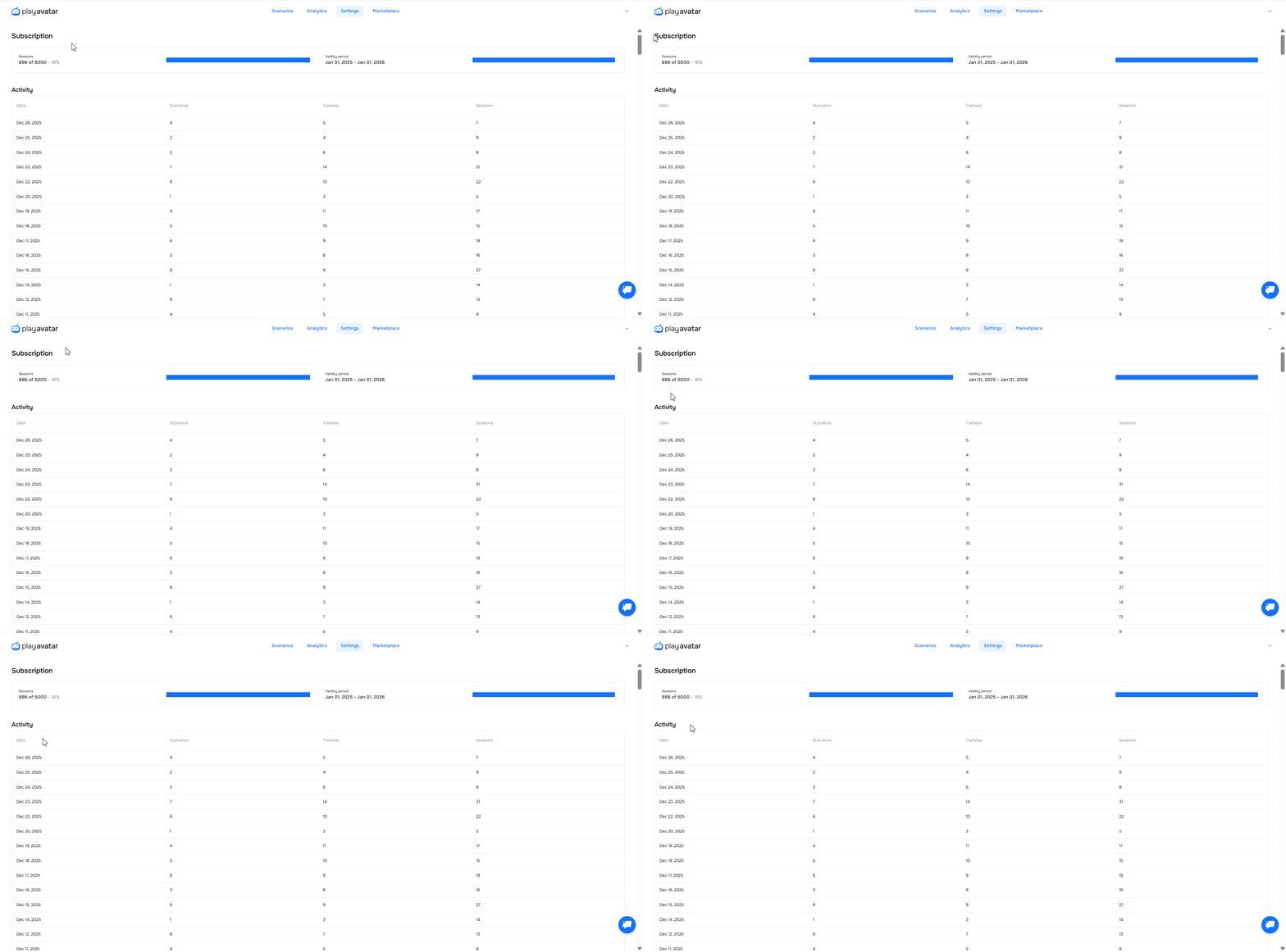
On the "Settings" page, you will see two key sections: "Subscription" and "Activity".
Subscription
In the subscription widget, you can see the total credit usage for the year.
The widget is divided into two parts:
| Element | What it shows |
|---|---|
Sessions | Credits used and remaining.
|
Validity period | Exact start and end dates of your subscription. |
Activity
Activity is a table that shows your organization’s credit usage per day across all scenarios.
Each row represents statistics for one calendar day.
| Table Column | What it Shows |
|---|---|
Date | The day for which the statistics are collected. |
Scenarios | The number of unique roleplays played that day. |
Trainees | The number of users who participated in roleplays that day. |
Sessions | The total number of credits (sessions) deducted for that day. |
How Credits are Deducted
A credit is deducted only after the conversation with the avatar starts.
| ✅ A credit will be deducted if | ❌ A credit will not be deducted |
|---|---|
When a dialogue has taken place and you and the avatar have delivered the first two lines of the scenario. For example, the avatar greets you and states the topic of the conversation, and you respond. | If the employee simply opened the roleplay page and closed it without starting a conversation. If you click the "Preview" button in the scenario editor. |
Need Help
Write to us in the chat — we're always happy to help 💬