
Scenario Testing
The main steps for testing a scenario are:
Launch the preview.
Check the briefing and roles.
Start the session and verify the bot's logic.
Review the report after the session ends.
Below, we go through each step in detail.
Step 1. Launch the preview
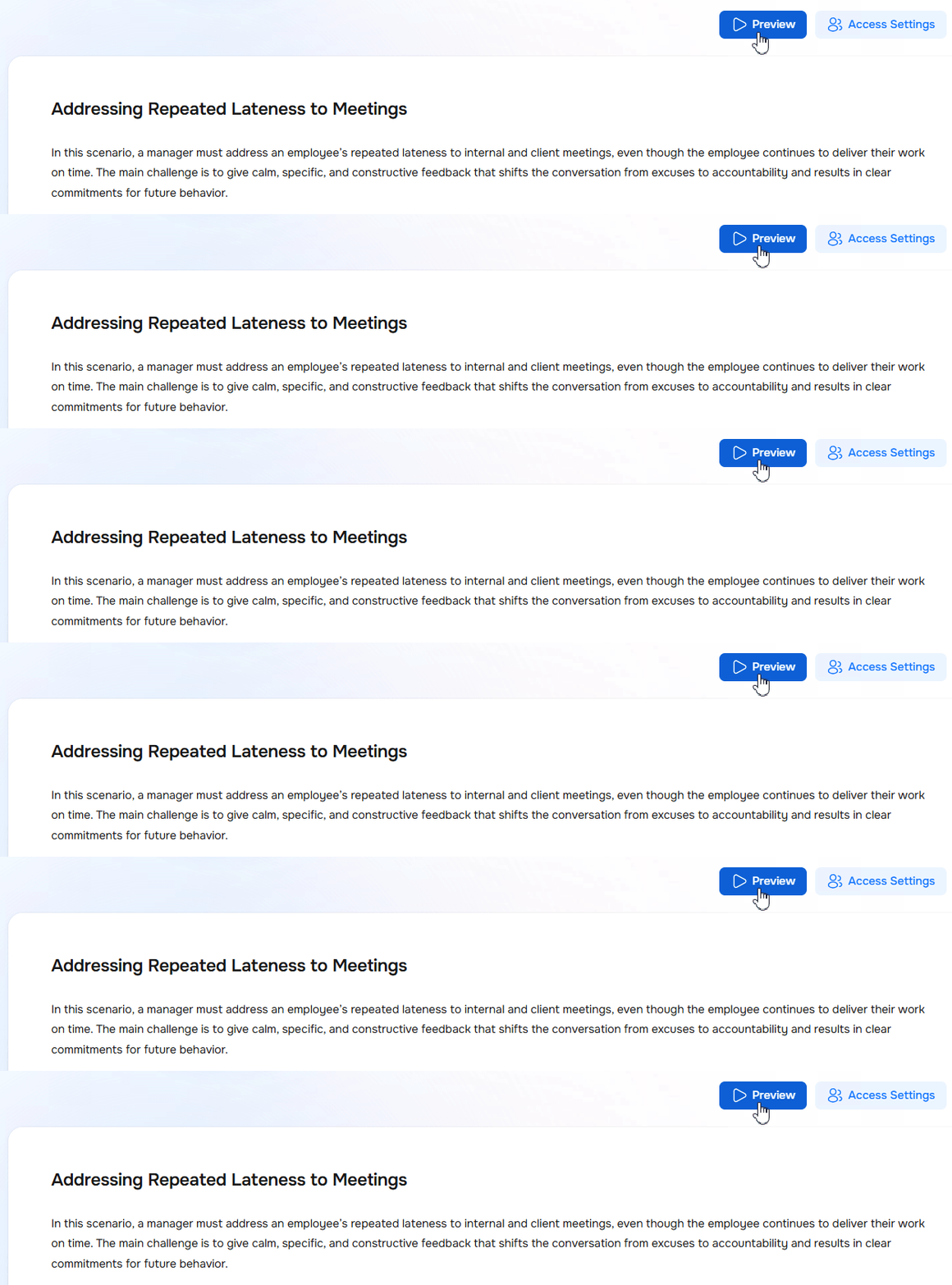
Click the "Preview" button in the scenario builder. This puts you into test mode, where you can interact with the bot exactly as a future participant will.
At this stage, you can confirm that the game launches without any technical issues.
Step 2. Check the legend and roles
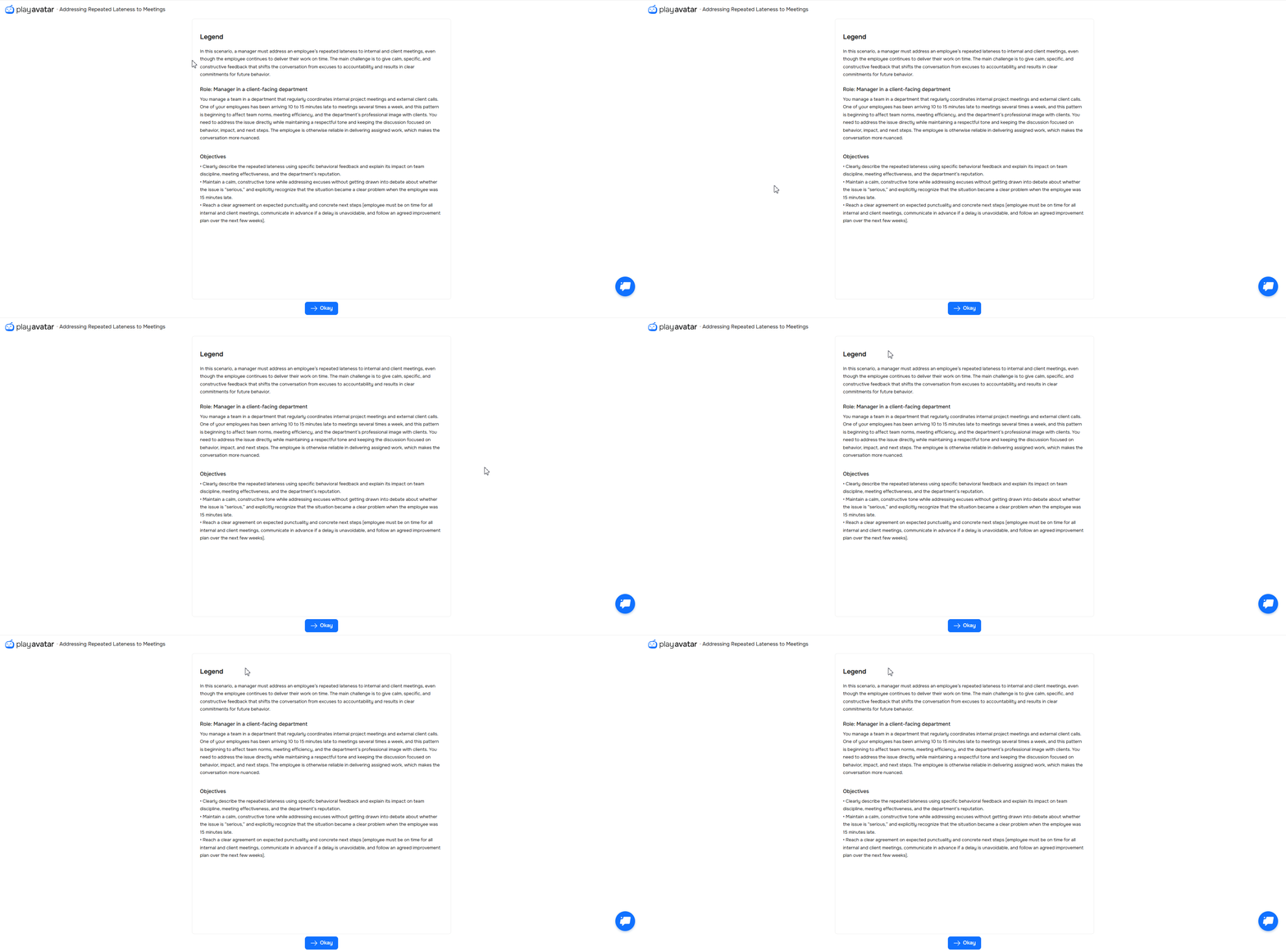
The first thing that appears is the briefing window. Check that it describes the situation, your role, and the goal of the exercise. It's important that participants have enough detail to get through the roleplay. If anything is missing, go back to the builder and add it.
Step 3. Start the session and verify the bot's logic
Once you've reviewed the briefing, click the "Okey" button and move into the game. The roleplay page will open in front of you.
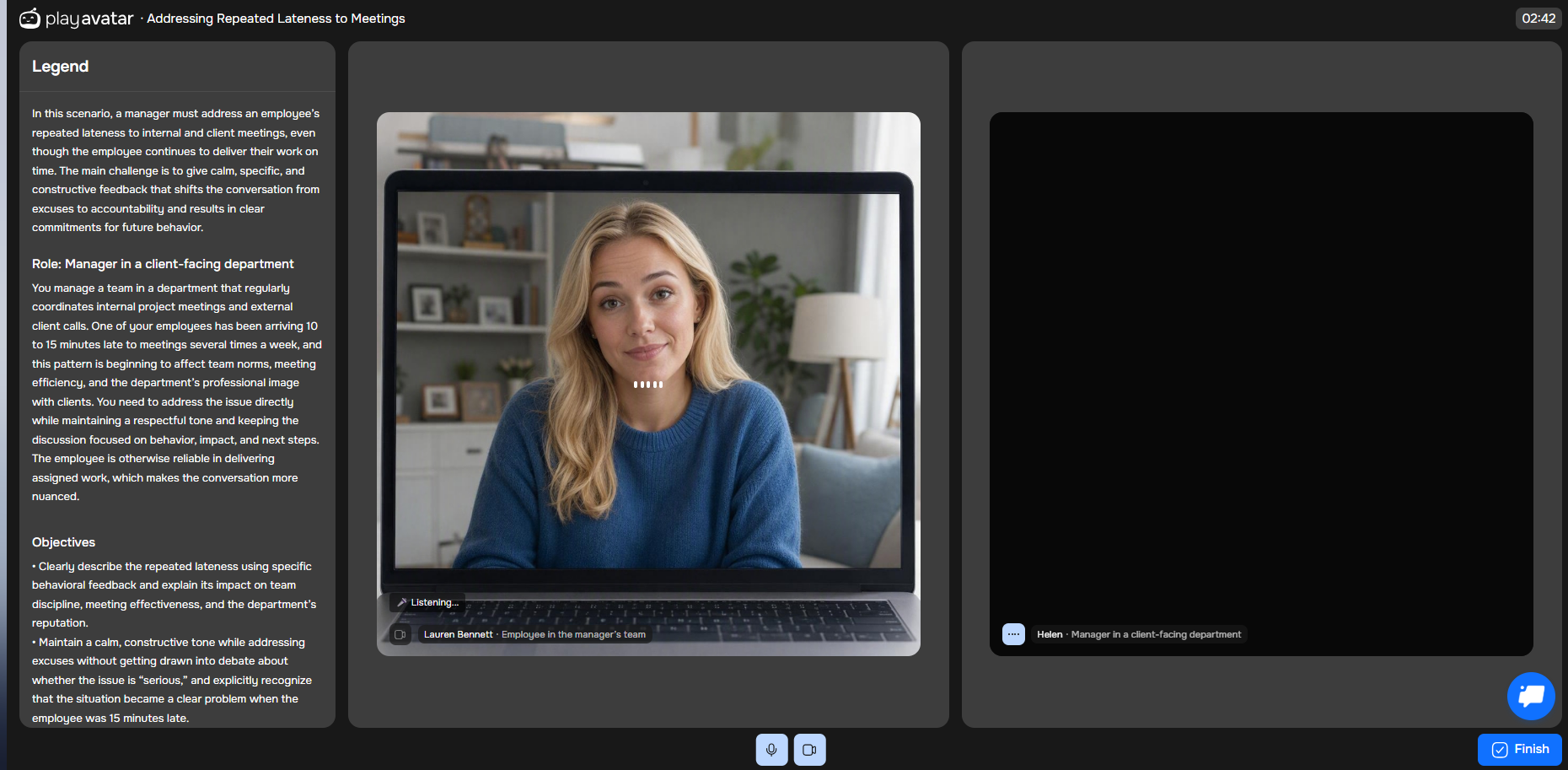
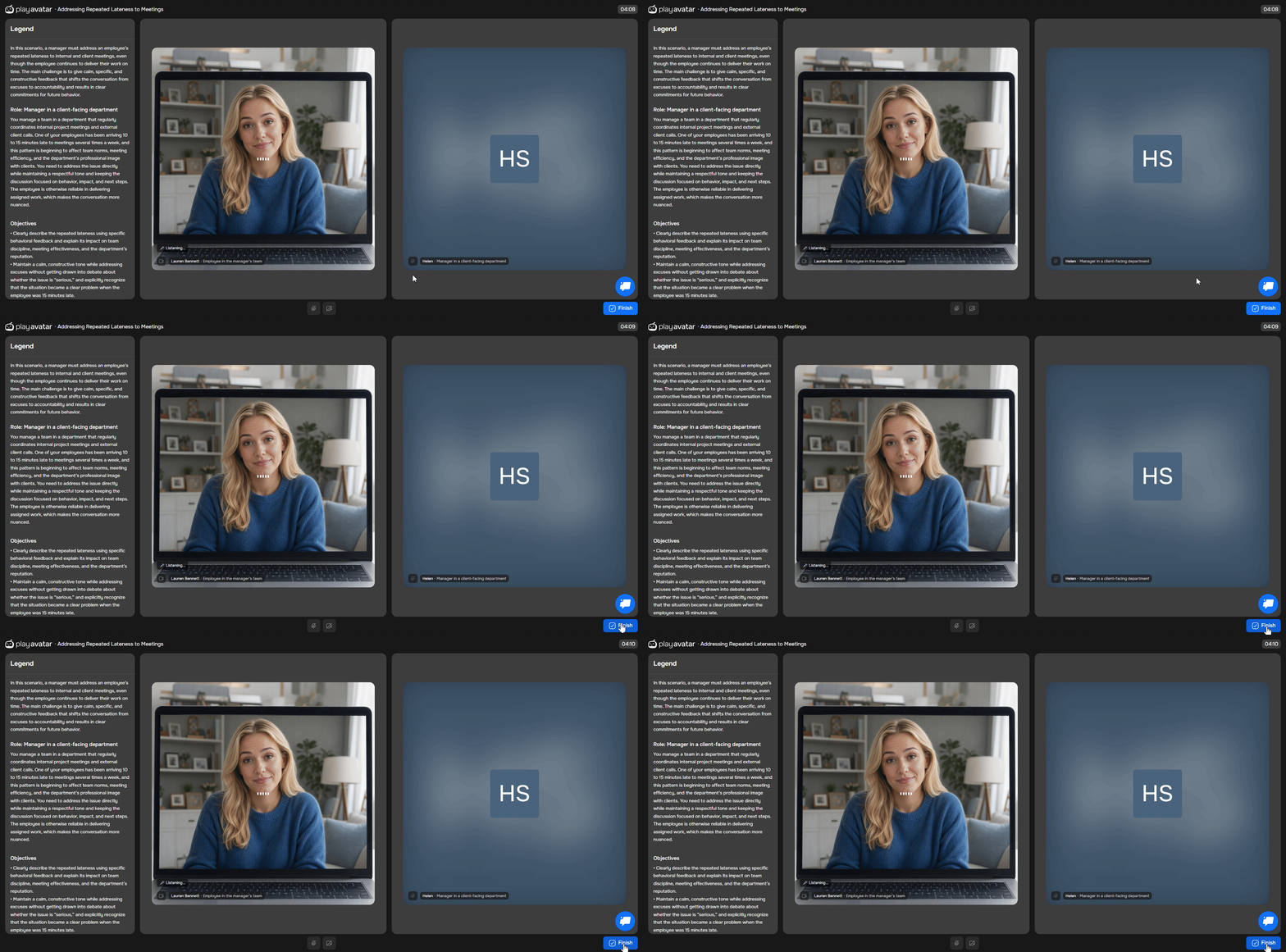
The session screen is divided into three areas:
| Screen area | Description |
|---|---|
| Left | The briefing, your role, and your goals. Use these as reference during the session. |
| Center | The bot — the character you selected in the builder. |
| Right | Your profile. |
The bot will start the conversation according to the scenario. Check that it:
Follows the defined rules and its own backstory.
Correctly and at the right moments uses information from its role card.
Responds to objections properly: reactions should appear only after the learner gives the corresponding reply or makes a specific statement.
Maintains the proper sequence: if objections are meant to appear in a certain order — they actually do.
Responds naturally to your answers, staying within the boundaries of your assigned role.
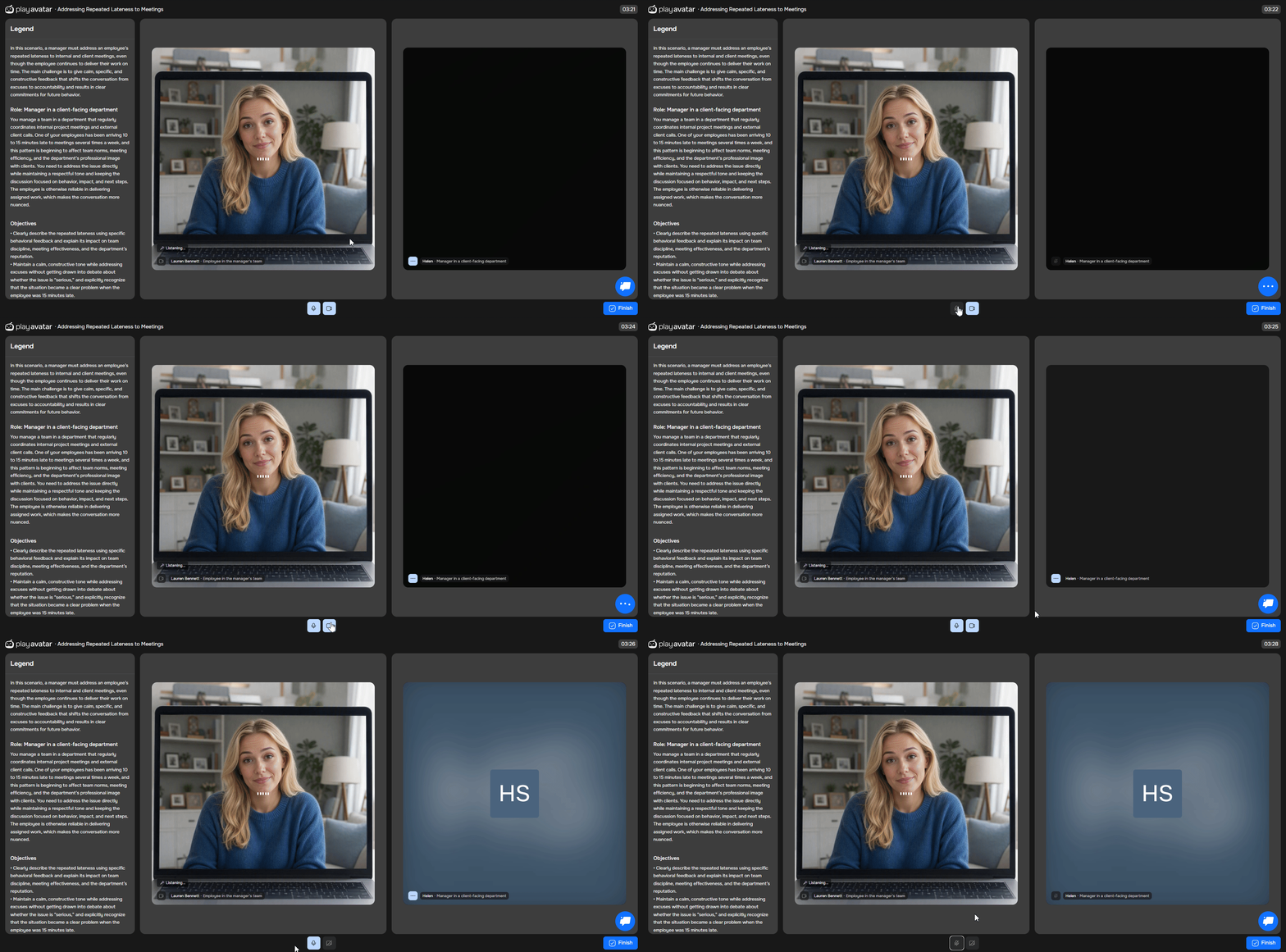
To reply to the bot, click the microphone icon at the bottom. You can also turn on your camera. When you start speaking, a speech indicator will appear next to your video feed.
💡 If the bot says something wrong, loses track of the context, reveals information too early, or delivers an incorrect objection — go back to the builder and add more specific instructions or restrictions. After any edit, retest that specific point in the session.
Recommended testing scope before release
Test the scenario with 2–3 people. For example: the scenario author, one member of the L&D team, and one employee who has no prior knowledge of the game's internal design.
Each person runs through the scenario 3 times:
Neutral run. The person goes through the scenario as a real user would on their first try — naturally, without deliberately trying to test branching paths.
"Ideal" run. The person consciously applies the target skills to reach the expected "good" outcome.
Run as a difficult learner. The person behaves aggressively, pushes back, or steers off-topic — to test how resilient the scenario is and whether it properly handles a failed conversation.
Step 4. Review the report after completion
When you finish the role-play, click the "Finish" button and review the roleplay report.
Check:
Whether all evaluation criteria are shown.
Whether progress or points are calculated correctly.
Whether the report is clear and easy to understand.
Need Help
Write to us in the chat — we're always happy to help 💬