
Access Settings
Here's how to open or close access to your game, set a completion deadline, limit the total number of sessions across all users or per individual trainee, customize the identification fields, and copy a shareable link.
Once you've built your roleplaying scenario, you need to decide who can play it, when, and under what conditions. These settings help you stay within budget, meet deadlines, and control trainee access. To do this, click the "Access Settings" button.
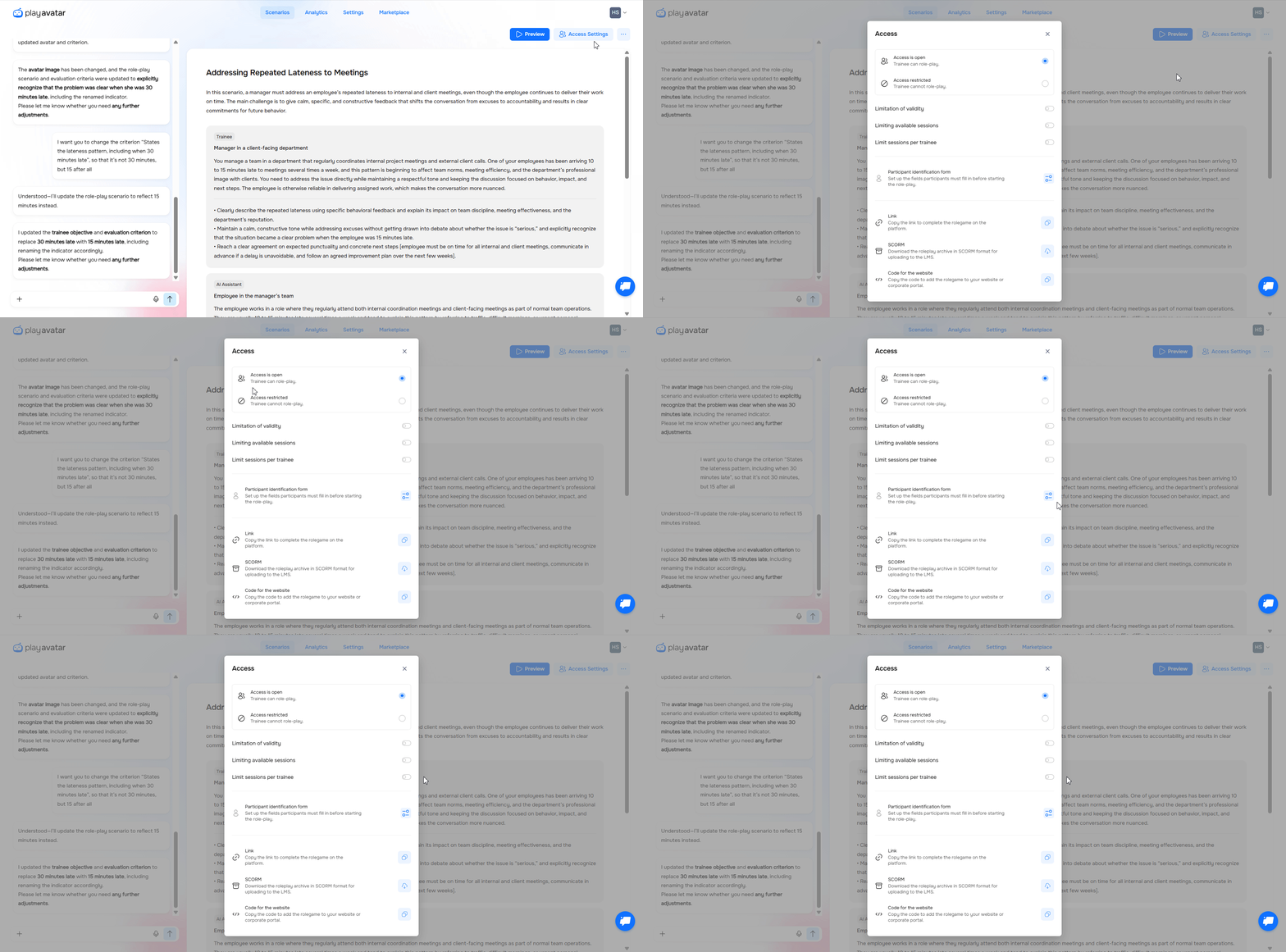
How toggles work
Each setting can be switched on or off using its toggle:
Blue (cyan) = the setting is active (on)
Gray (white) = the setting is inactive (off)
Turn on only what you need for your specific task.
Settings overview
Function | What it does |
|---|---|
| Access is open / Access restricted | Allow or block trainees from participating in the game.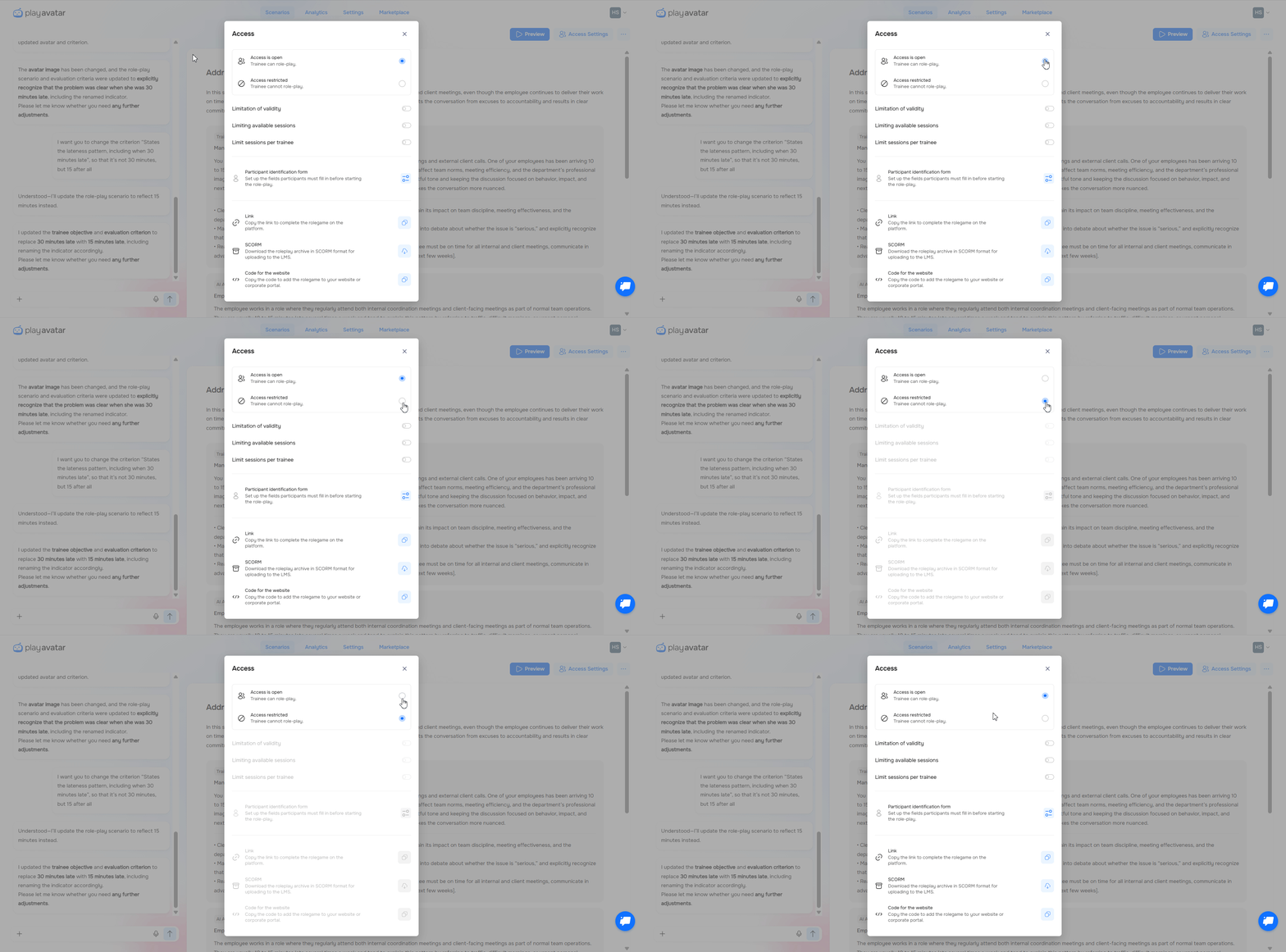 ⚠️ If you close access to the scenario, the other settings will become unavailable. ⚠️ If you close access to the scenario, the other settings will become unavailable. |
| Limitation of validity | Set a date by which the game must be completed. 🤓 Example: the roleplaying must be completed by the end of the week. 🤓 Example: the roleplaying must be completed by the end of the week. |
| Limiting available sessions | Control your overall budget. The system adds up the expenses of all trainees and will automatically close access to the game once the set session limit is reached. 🤓 Example: you set the value to 50, meaning no more than 50 credits will be deducted from your account. 🤓 Example: you set the value to 50, meaning no more than 50 credits will be deducted from your account. |
| Limit sessions per trainee | Specify how many times a single trainee can take this roleplaying. 💡 What's the difference between the total session limit and the session limit per trainee? 💡 What's the difference between the total session limit and the session limit per trainee?The total session limit restricts the overall number of attempts (sessions), but doesn't control who uses them. These could be 10 different employees (1 attempt each) or, for example, 2 employees (5 attempts each) — as soon as the total number of played sessions reaches 10, access will be restricted. The session limit per trainee restricts the number of replays for one specific employee. If set to 3, the same user won't be able to start the game a 4th time, even if the overall limit of 10 sessions hasn't been exhausted yet. |
| Participant identification form | A setting that determines which fields participants will fill out before starting the roleplaying.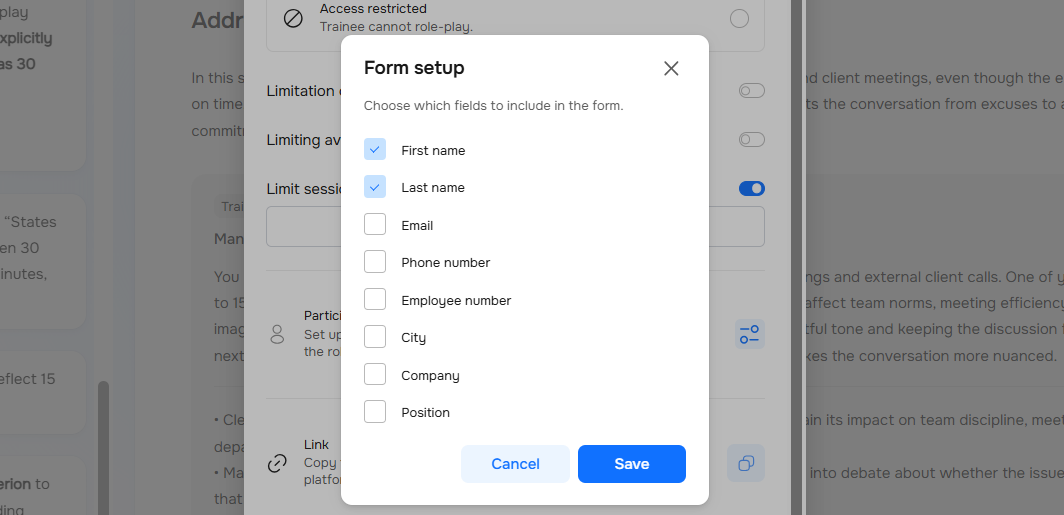 Check the required fields and click the "Save" button. Check the required fields and click the "Save" button.Available fields for the form:
|
| Link | Copy the direct link to the game to send it to trainees or include it in an email. ⚠️ Participants will be able to follow your link immediately, play the game, and receive a personalized report upon completion. Each such completed session will deduct credits from your organization's balance. ⚠️ Participants will be able to follow your link immediately, play the game, and receive a personalized report upon completion. Each such completed session will deduct credits from your organization's balance. |
| SCORM | Download an archive in SCORM 1.2 or SCORM 2004 format for upload to your LMS. 💡 About the passing score and game status in the exported SCORM file: 💡 About the passing score and game status in the exported SCORM file:When a game is added to a training course via an LMS, the system automatically sets a passing score of at least 70 points. This is a fixed system rule for all scenarios, and this threshold cannot be changed. If the score is 70% or higher, the game is considered passed (completed). If the score is below 70%, the status will remain "In progress" (not completed). |
| Code for the website | Embed the game directly on your website or corporate portal using an <iframe> code. |
Need Help
Write to us in the chat — we're always happy to help 💬