
Scenarios
In the "Scenarios" section, you can view all existing scenarios or create a new one.
Page overview
Create button – opens the scenario editor to build a new scenario.
Filters – help you locate a specific scenario in the shared library.
Scenario library – the main table listing all your scenarios.
Additional action buttons.
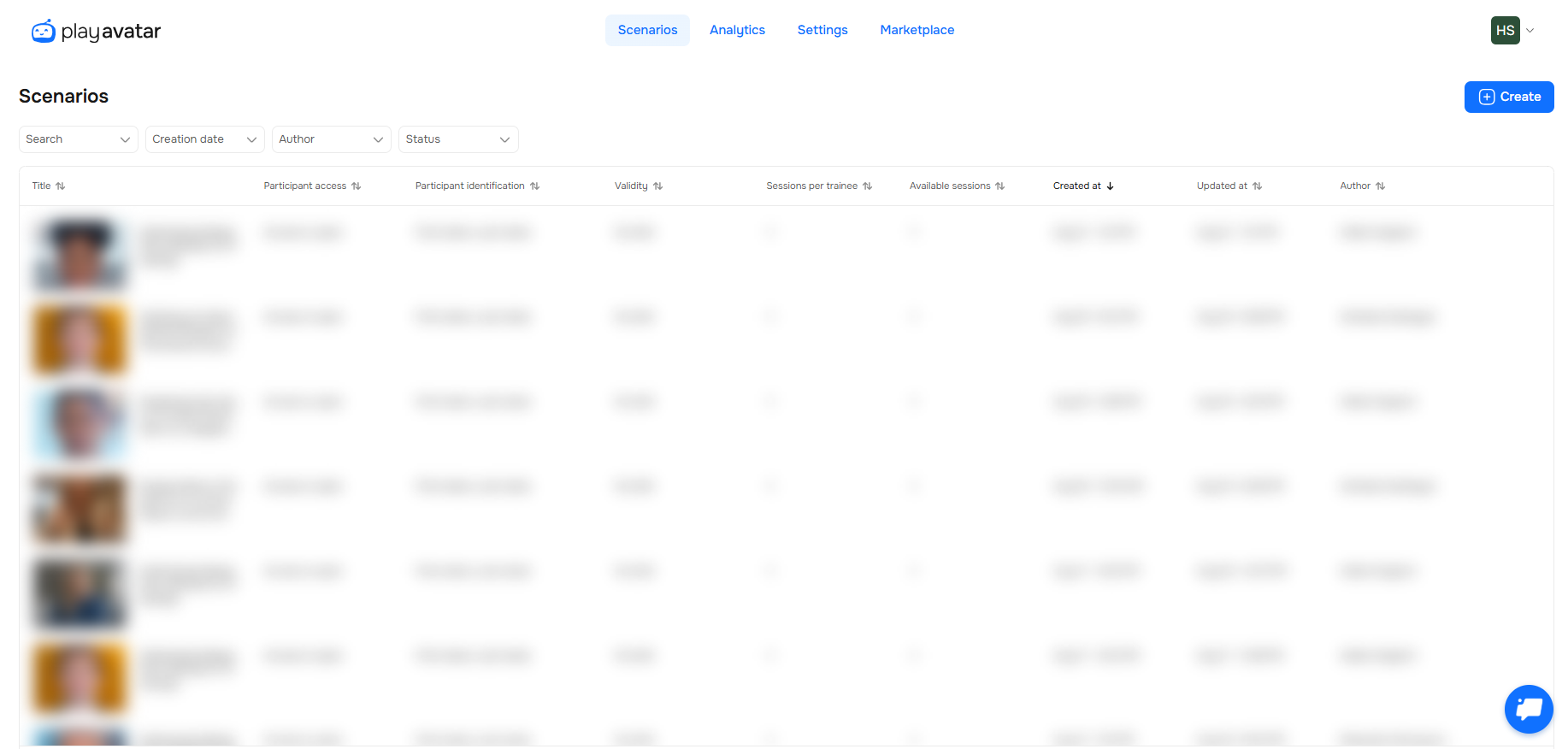
Create button
Click it to start creating a new scenario. For details, see this article.

Filters
Four filters are available above the table. Here’s what each one does:
| Filter | Description |
|---|---|
| Search | Opens a search box where you can enter a scenario name or a keyword. The list updates automatically based on your input.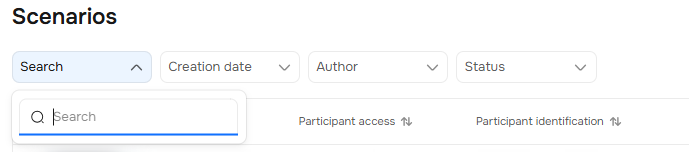 |
| Creation date | Lets you filter by date – you can pick a single date or a range. The table updates to show only scenarios created within that period.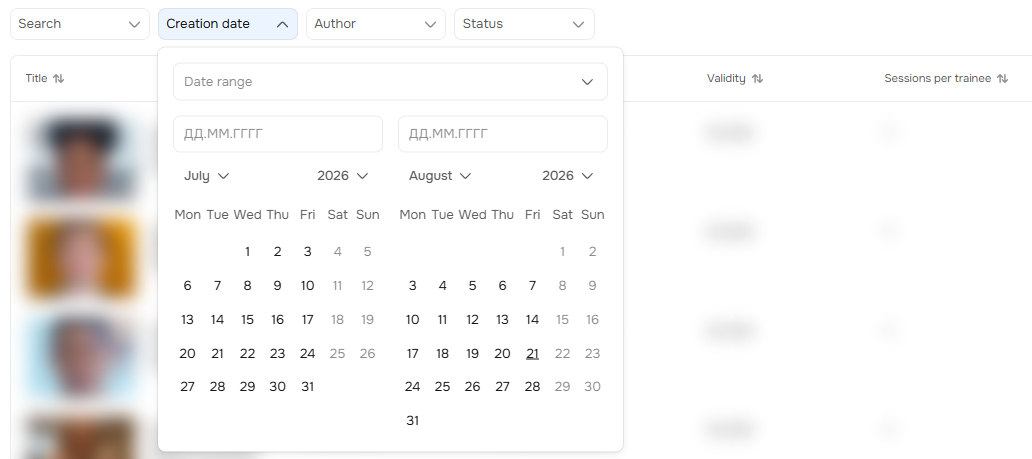 |
| Author | Opens a list of authors; check one or multiple names. The table then shows only scenarios created by the selected author(s).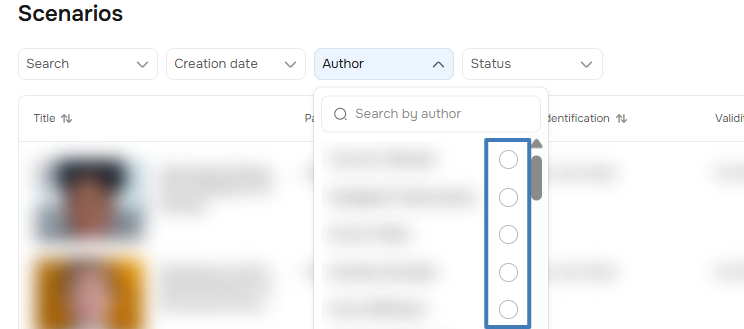 |
| Status | Filters by access setting: "Access is open" or "Access restricted".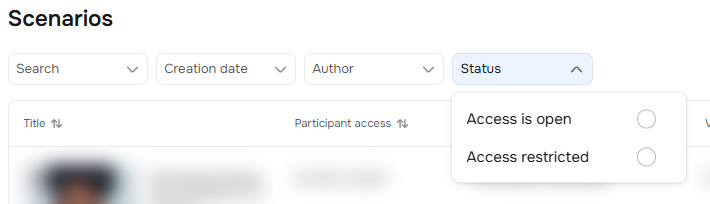 |
You can combine filters to narrow down results further.

Click "Reset all" to clear all filters and return to the default view.

Scenario table
The main table displays all scenarios available in your organisation.
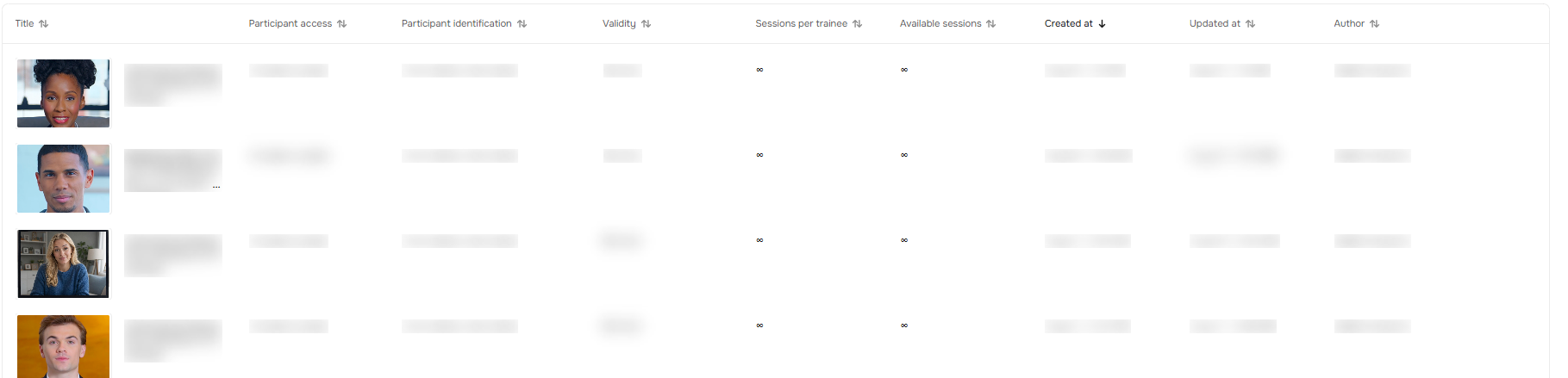
Click any column header to sort the table – for example, by creation date or last update date. To clear any sorting or filter settings, use the "Reset all" button.
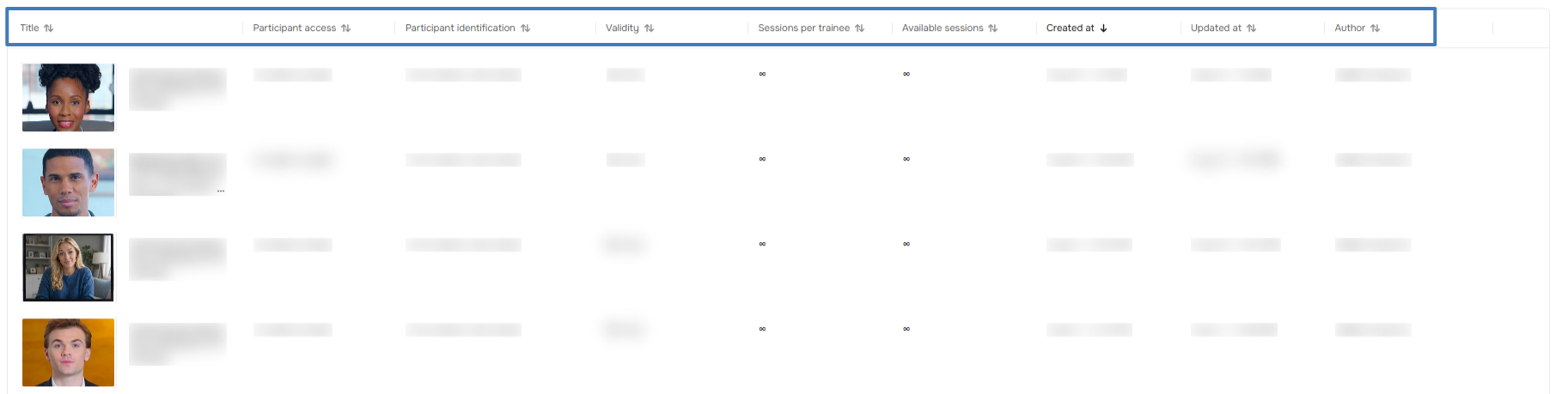
Hover over a scenario name to see its full title in a tooltip.

Table columns
| Column | Description |
|---|---|
| Tile | The scenario’s title. |
| Participant access | Shows whether access is open or closed. |
| Participant identification | Specifies what information a participant must provide when starting the scenario. |
| Validity | The date until which the scenario remains available for completion. |
| Sessions per trainee | Number of attempts each participant is allowed. |
| Available sessions | Total number of sessions allocated for the scenario. |
| Created at | When the scenario was created. |
| Updated at | When the scenario was last modified. |
| Author | First and last name of the creator. |
Actions available for a scenario
Click any scenario to open it in the editor.
In the table, click the three‑dot menu next to any scenario to choose one of the following:
Duplicate – create a copy for editing.
View analytics – go to the scenario’s analytics page.
Delete – permanently remove the scenario.
Need Help
Write to us in the chat — we're always happy to help 💬