
Roleplay Walkthrough
Step 1. Enter your details and start the roleplay
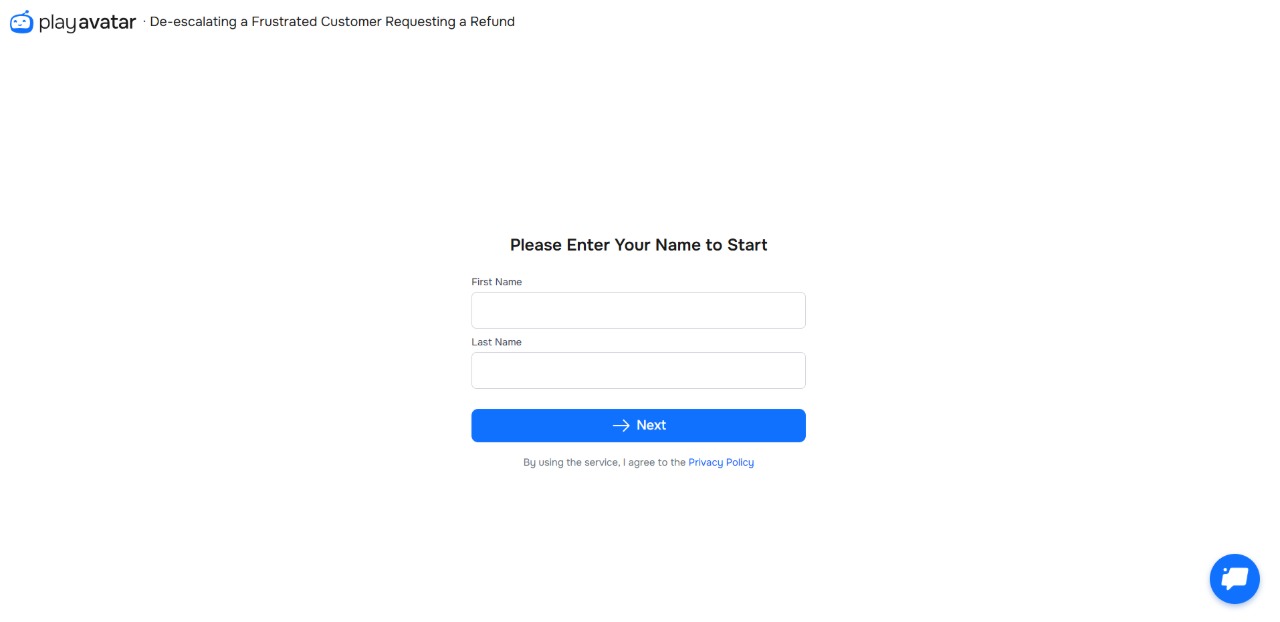
Once you receive the link, open it — you’ll be taken to the sign-in page before the roleplay begins.
Enter your first and last name. This is required to track your results within the organization. Then, click "Next" to continue.
Step 2. Review the scenario brief and objectives
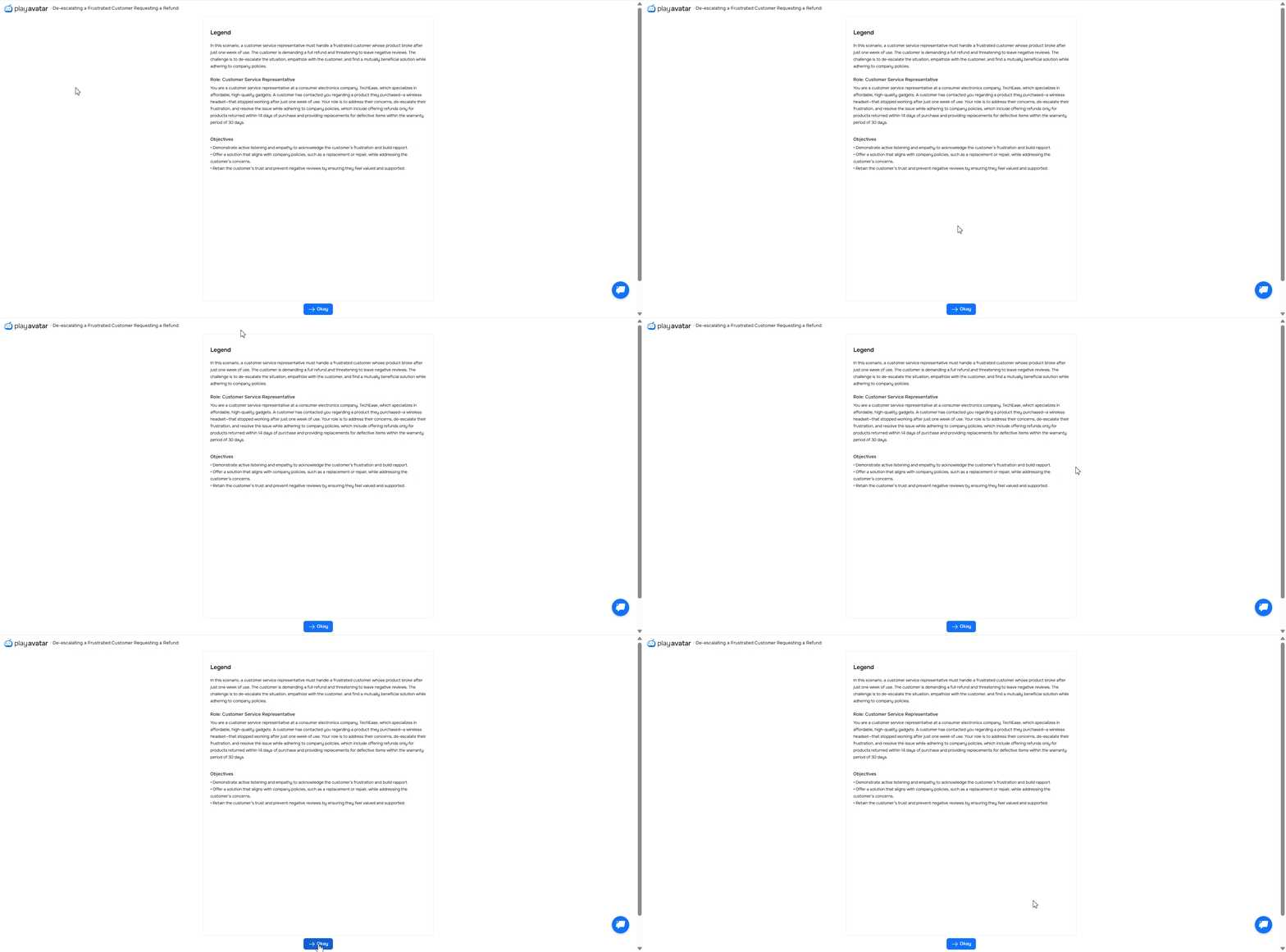
On this page, carefully review the three key elements:
Legend. Describes the situation in which the conversation takes place.
Role. Defines who you are in the dialogue.
Objectives. Explains what you need to achieve during the conversation.
Once you've read the information, click "Okay" to proceed to the roleplay.
Step 3. Check Your Mic, Camera, and Connection
Before starting, ensure:
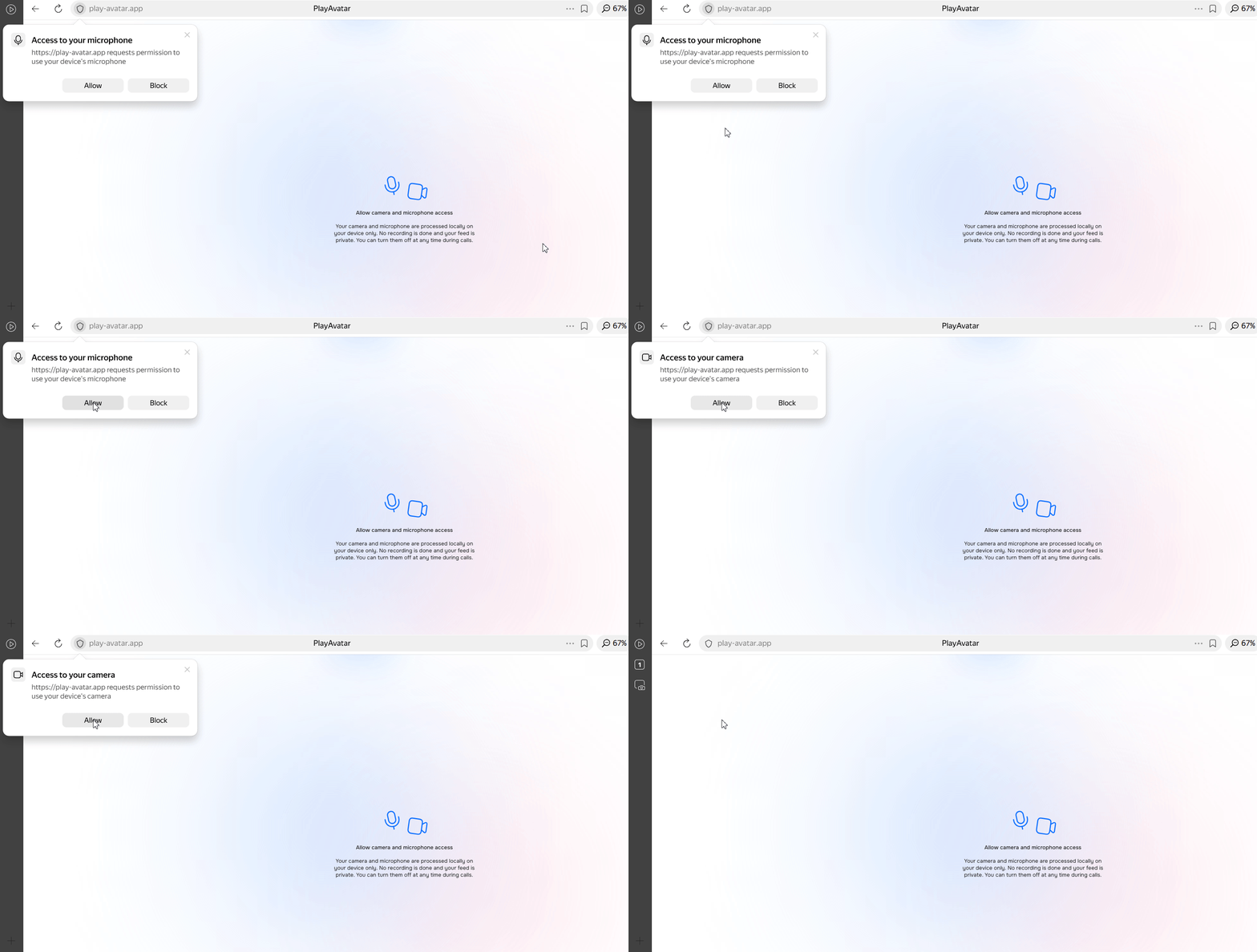
You’ve allowed microphone and camera access in your browser on the page.
Your microphone and camera aren’t being used by other apps or tabs (for example, Zoom/Teams/Meet).
The correct microphone, camera, and audio output device are selected, especially if multiple devices are connected.
You have a stable internet connection.
⚠️Your camera and microphone are processed locally on your device only. Nothing is recorded, and your stream is private. You can disable them anytime during the call.
💡 For the best experience, find a quiet environment. The avatar is sensitive to background noise.
Click "Allow" in your browser's permission prompt. The roleplay window will then open.
Step 4. Communicate with the AI Assistant
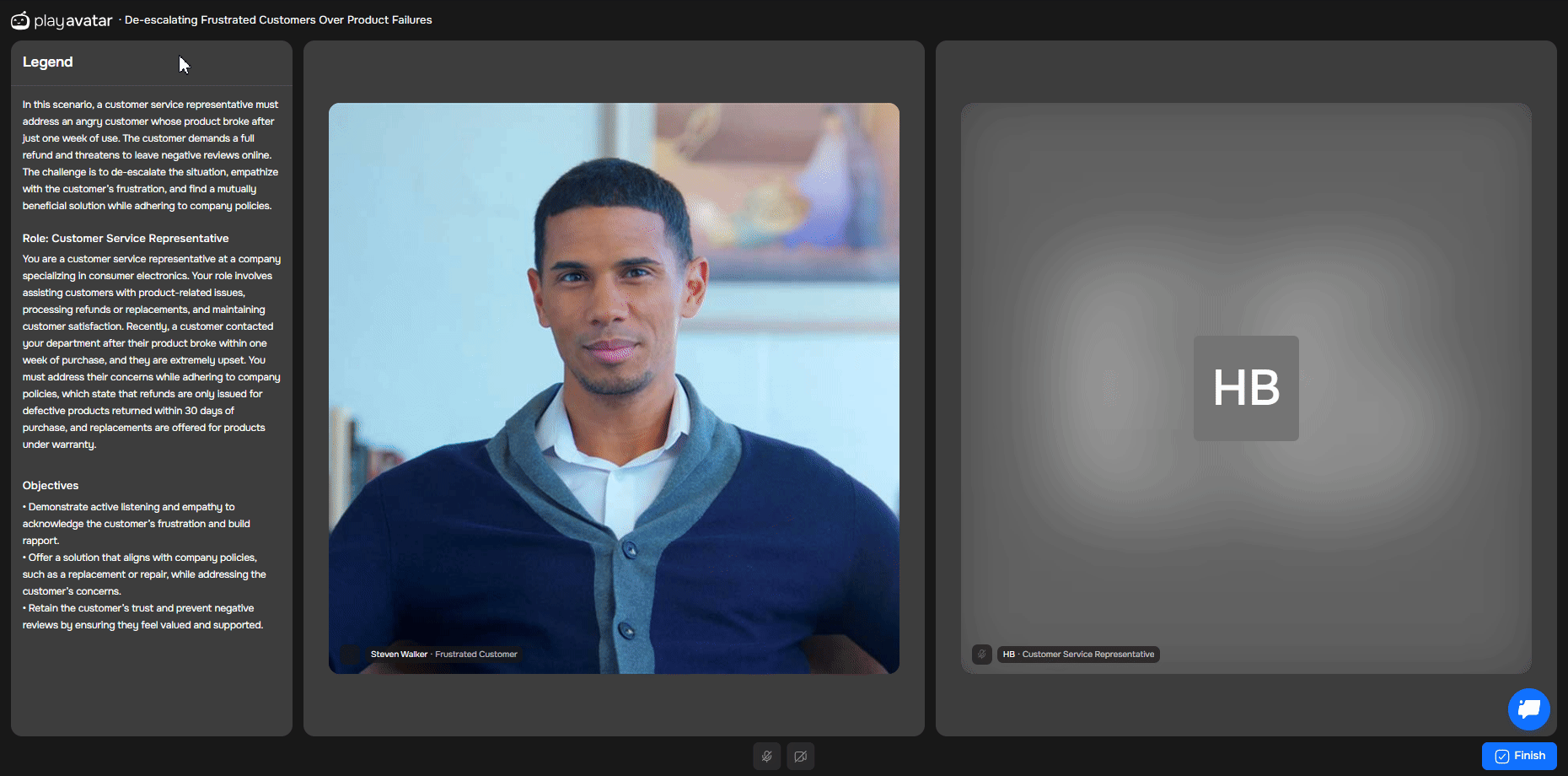
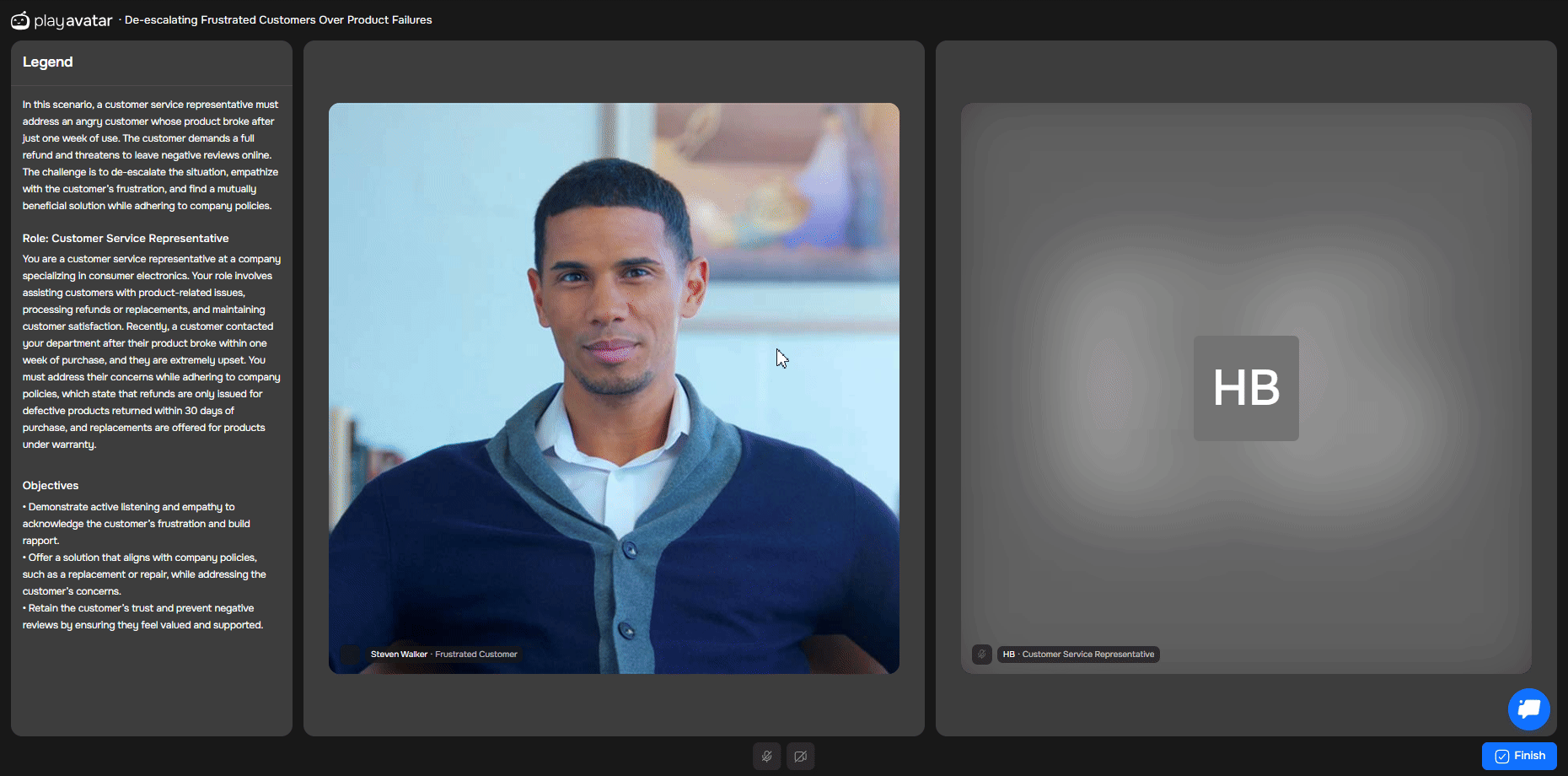
The roleplay screen has three main areas.
| Section | What's There |
|---|---|
Left | Backstory, role, and goals. |
Center | The AI assistant — the character you’ll be speaking with. |
Right | Your profile. |
The AI will start the conversation according to the scripted scenario — сontinue the dialogue as you normally would.
At the bottom of the screen, you can manage microphone and camera access.
Below the avatar window, you’ll see the status “Listening” or “Speaking” — it indicates whether the avatar is currently listening to you or delivering its response.
How to Communicate with the Avatar
Always let the Avatar finish speaking. If it’s silent for 2-3 seconds, that’s your cue to start talking.
When speaking, avoid pauses longer than 1.5 seconds — for the Avatar, this signals that you’ve finished, and it will start preparing a reply. Anything you say after such a pause will be taken as a new request, which can disrupt the flow of the dialogue.
Talk to the AI as if it were a real person in a real-life setting. Your priority is to achieve the goals from the scenario.To do that:
Stick to your role and objective. Check the left panel from time to time to stay on track.
Demonstrate the skills you’re practicing. For example, if you’re training questioning techniques, ask questions actively.
Respond to what the AI says. If the assistant asks a question or raises an objection, answer it directly while continuing toward your goal.
Don’t be afraid to pause and think. Just like in a real conversation.
⚠️ The avatar isn’t working properly. What should I do?
Refresh the page if:
- The avatar says its first line twice at the start.
- It interrupts you during pauses shorter than 2-3 seconds.
- It doesn't respond for 5-10 seconds.
⚠️ Avatar Going Off-Topic?
If responses seem irrelevant, gently steer the conversation back: repeat a key point or ask a clarifying question. Your adaptability is key.
Step 5. Finish and Review Your Report
When you're done, click the "Finish" button. You will then see your detailed roleplay report.
Need Help
Write to us in the chat — we're always happy to help 💬