
Adding RolePlays from PlayAvatar using a ZIP file
💡 We recommend checking the Knowledge Base of your learning platform to confirm whether you can add roleplay content by uploading a ZIP file.
Step 1. Prepare the Course in TalentLMS
1. Go to the course builder.
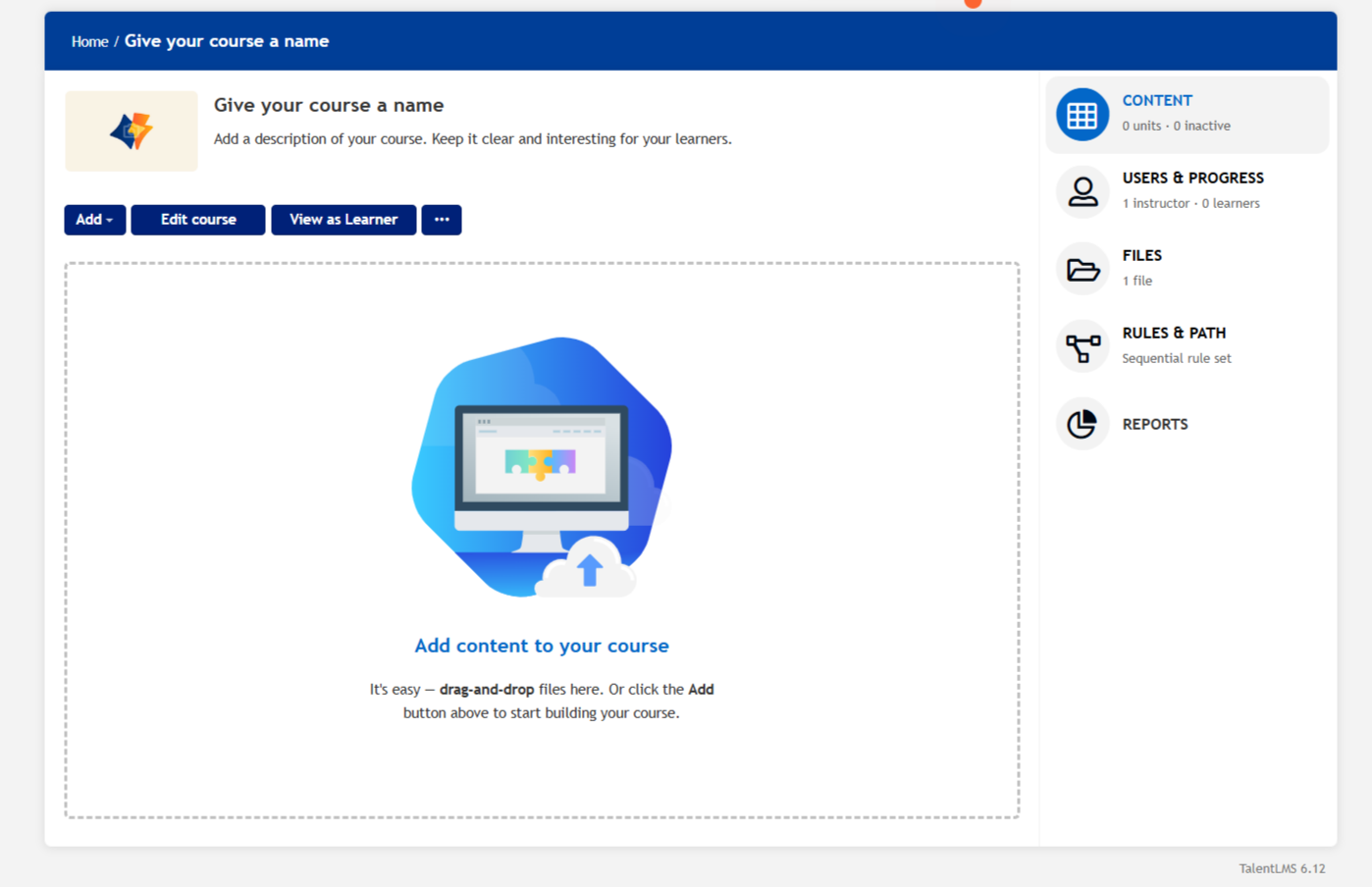
2. Click "Add" button and choose "SCORM | xAPI | cmi5".
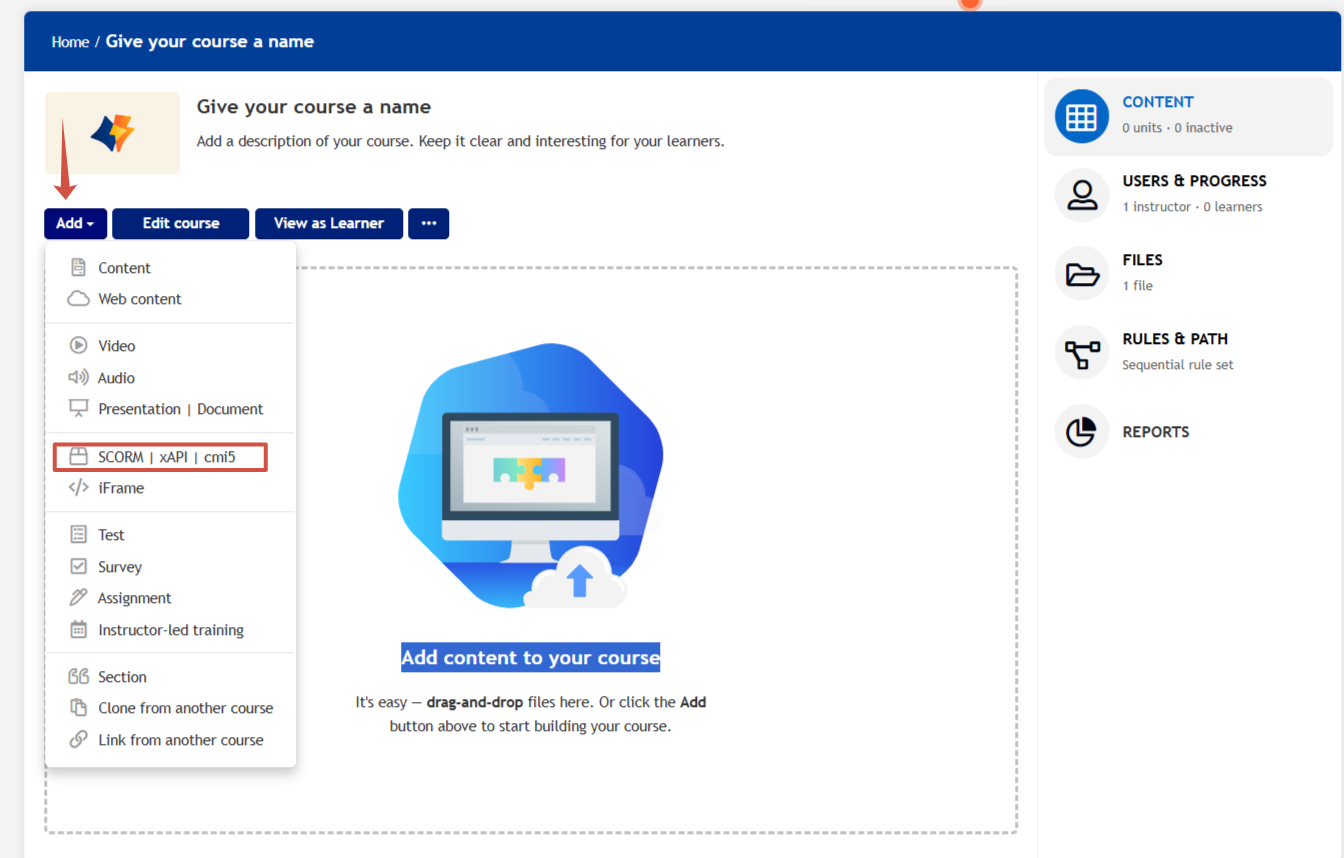
A file upload window will appear – keep it open.
Step 2. Download the ZIP File from PlayAvatar
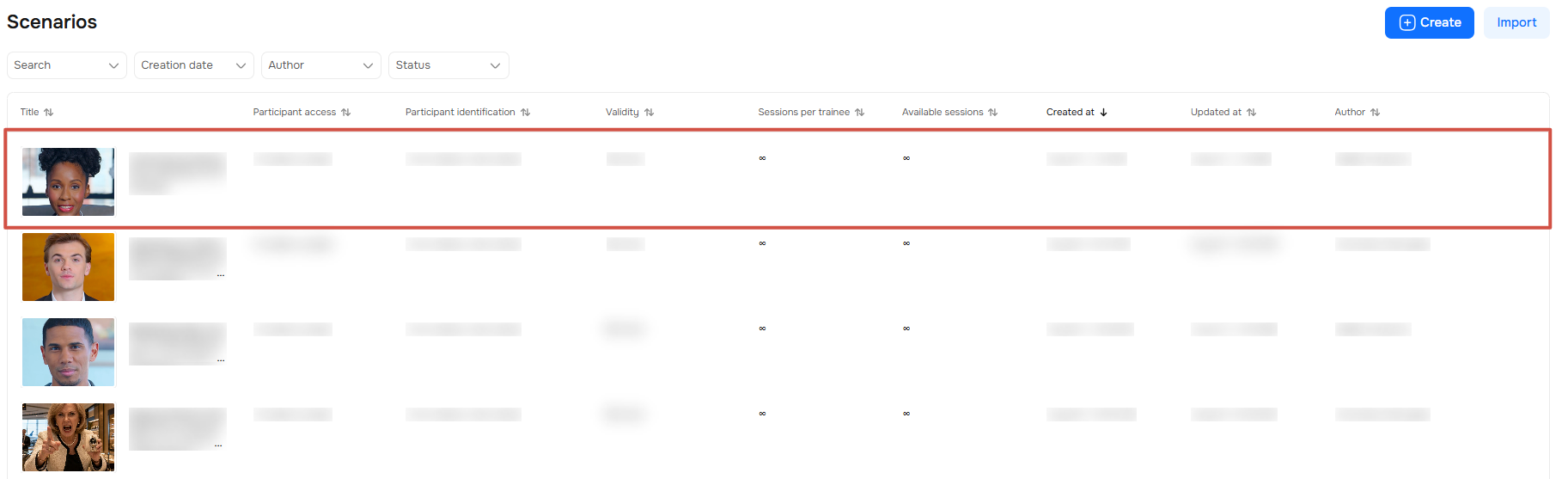
1. Go to PlayAvatar, find and open the roleplay you need.
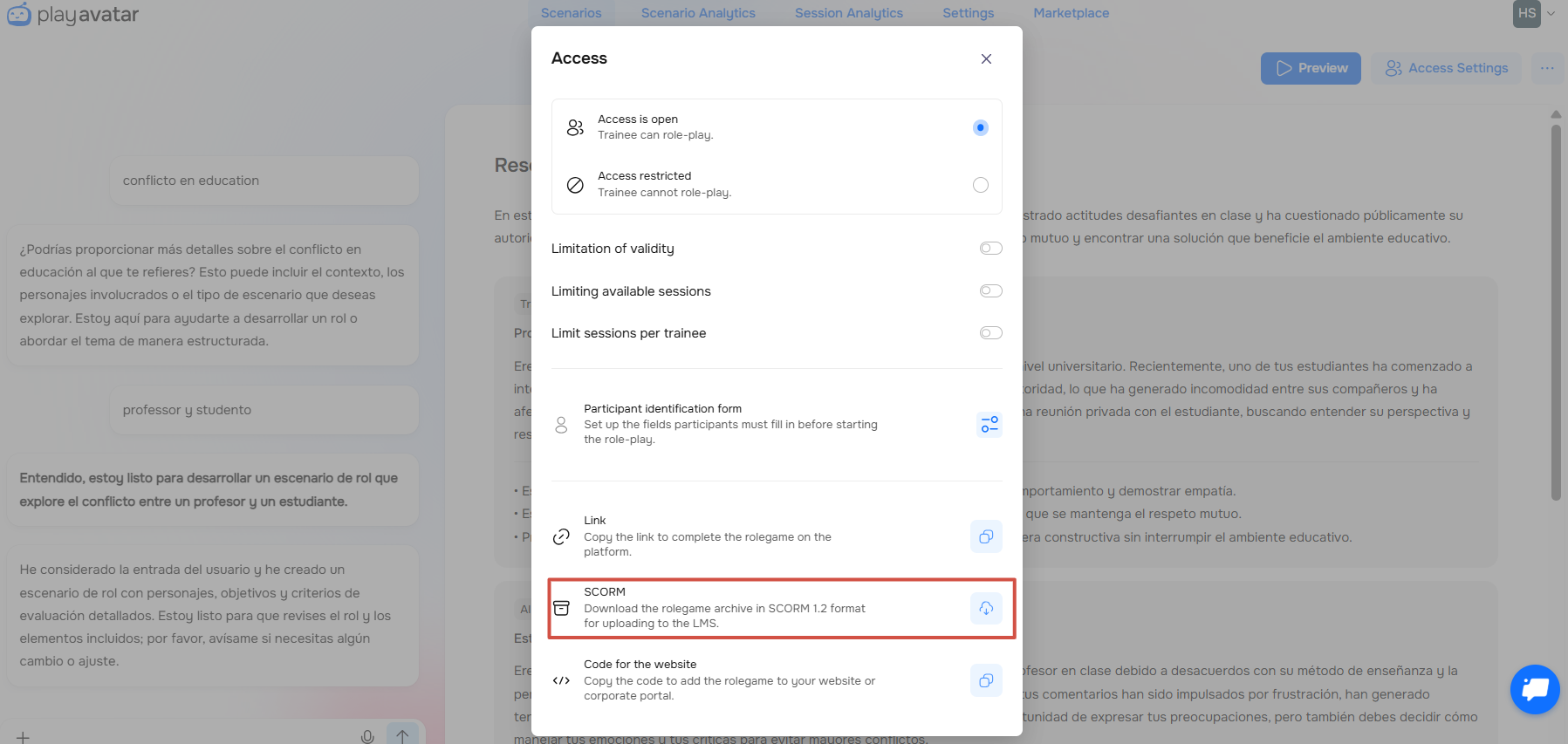
2. Click on the "Access Setting" button.
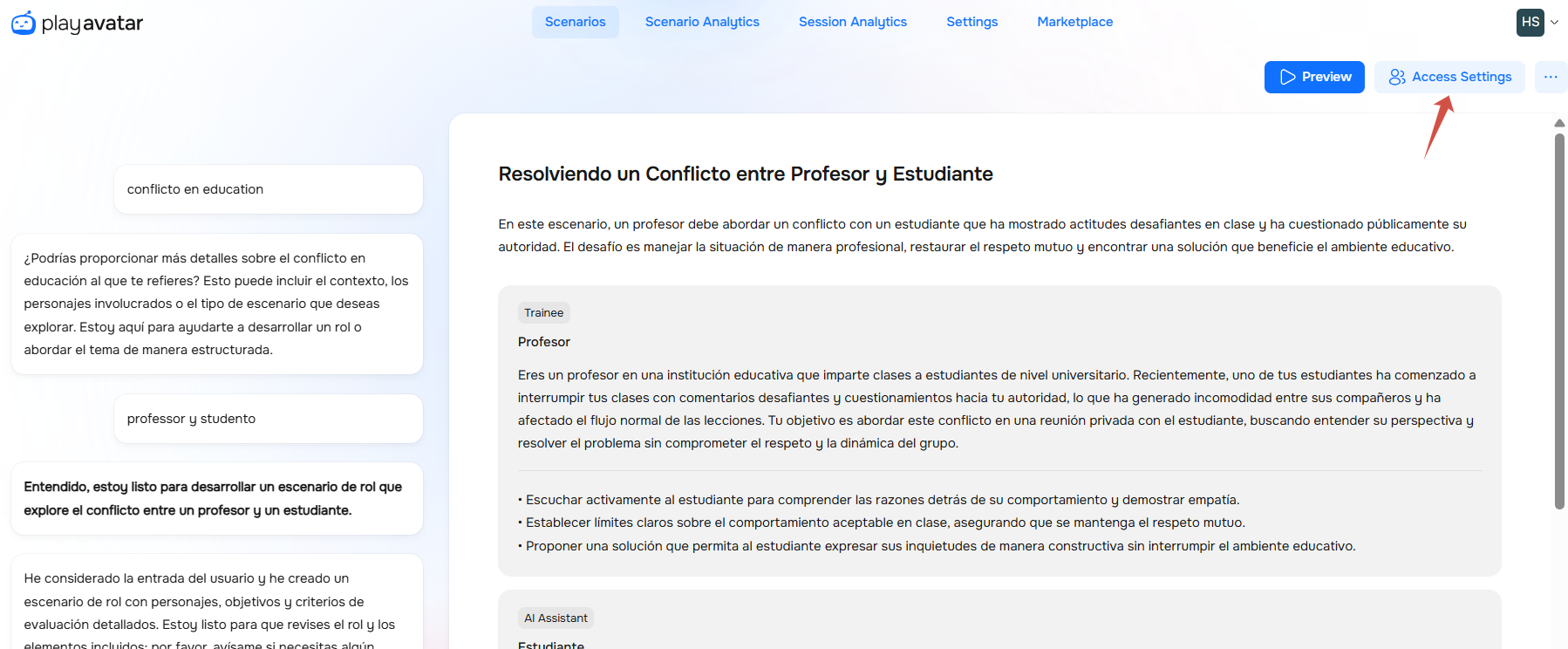
3. Click on the button in the SCORM block and Download the generated ZIP file to your computer.
💡 About the Passing Score and Game Status in the Exported SCORM File
To successfully complete the game, a score of at least 70% is required. This is a fixed system rule for all scenarios, and this threshold cannot be changed.
If the result is equal to or above 70%, the game is considered passed.
If the result is below 70%, the status will remain "In Progress".
Step 3. Upload & Finish in TalentLMS
1. Return to the open window in your TalentLMS course builder.
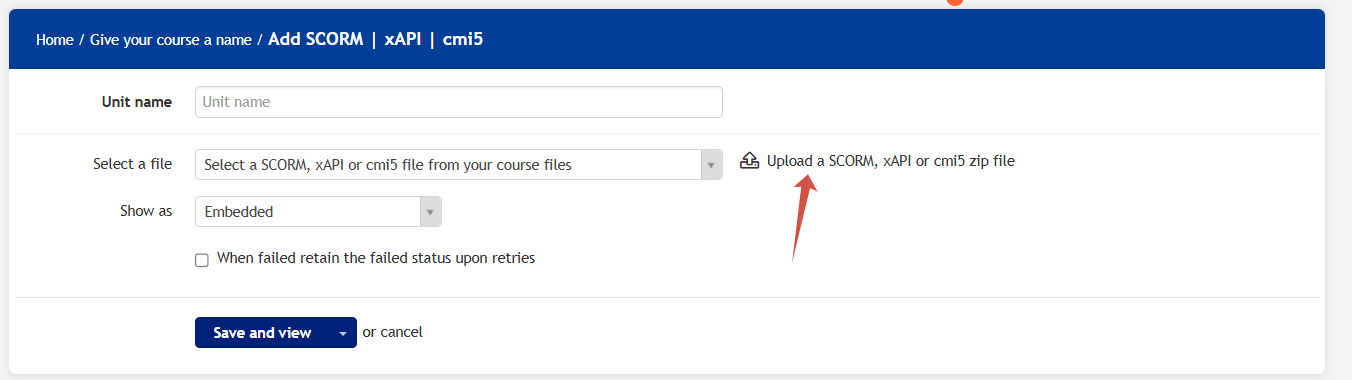
2. Click "Upload a SCORM, xAPI or cmi5 zip file" and select the ZIP file you downloaded.
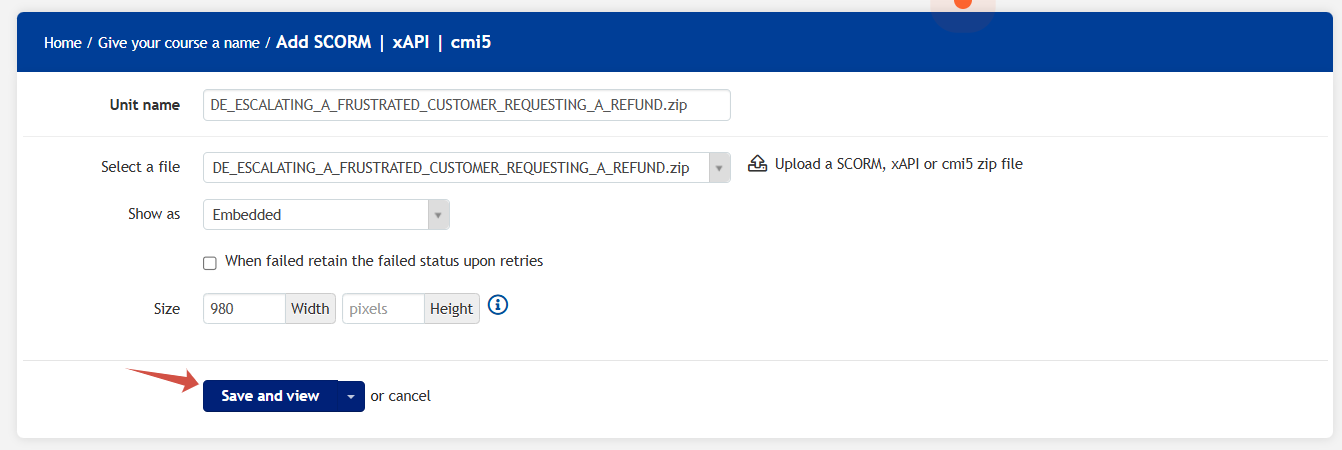
3. Click the "Save and view" button. The role-play will be added to your course.
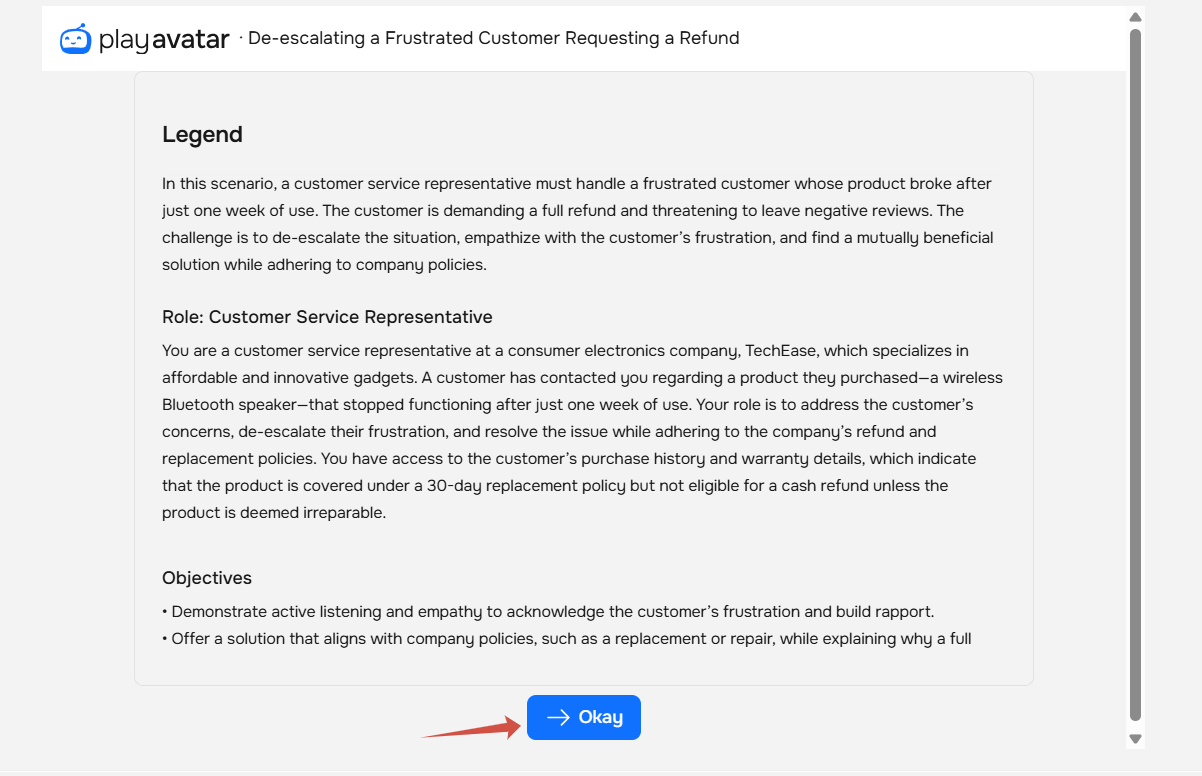
Click the “Okay” button to test the operation of the roleplay.
💡 You can also add a roleplay using a link from PlayAvatar. Use the instructions from this same article.
Need Help
Write to us in the chat — we're always happy to help 💬