
Import RolePlays from PlayAvatar Using the Link
💡 We recommend checking the Knowledge Base of your learning platform to confirm whether you can add roleplay content using a direct link.
Step 1. Create or Open Your Course
1. Open Articulate 360 and click the “Create New” button.
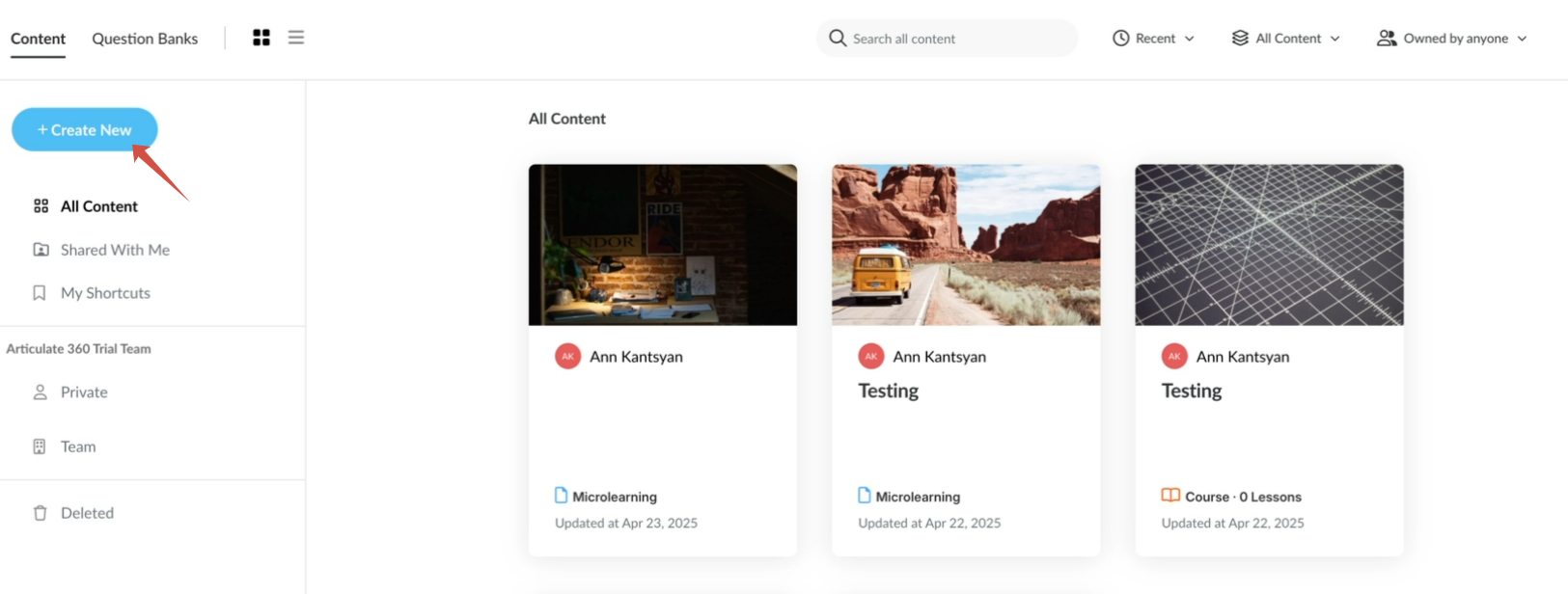
2. Select the course type "Microlearning".
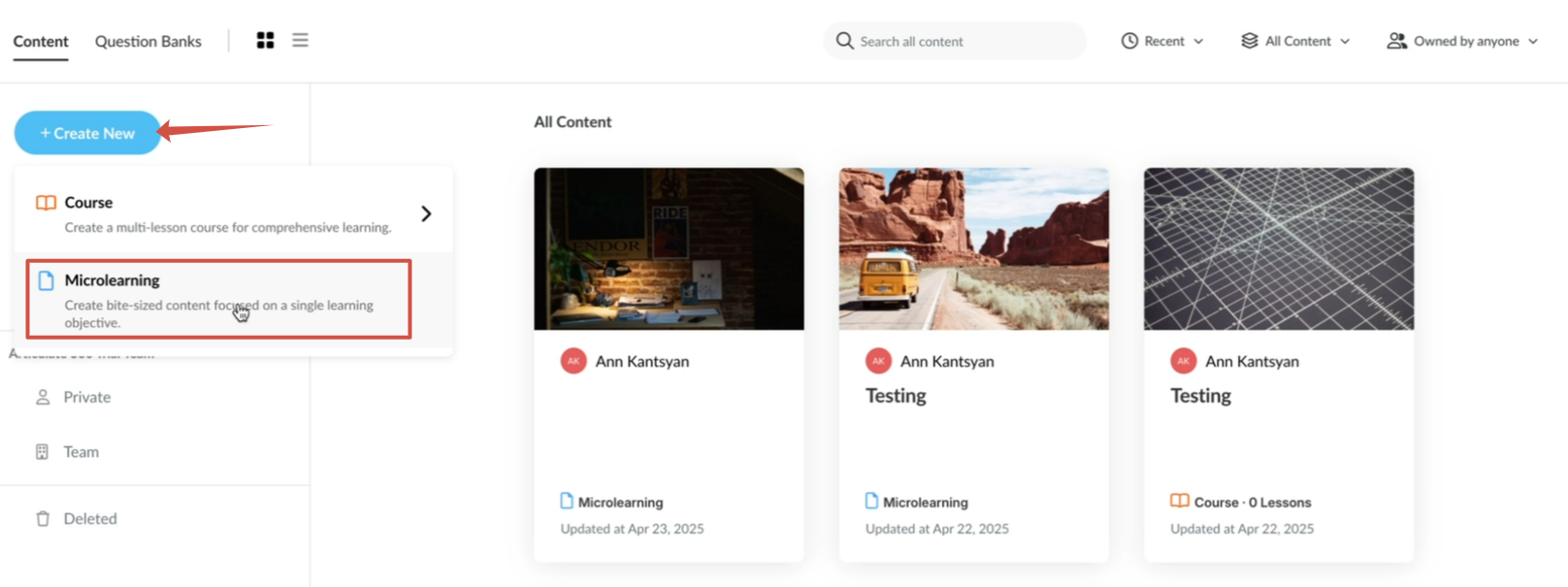
3. Choose a blank template. To do this, click the “Blank Microlearning" button.

Step 2. Add a Multimedia Block
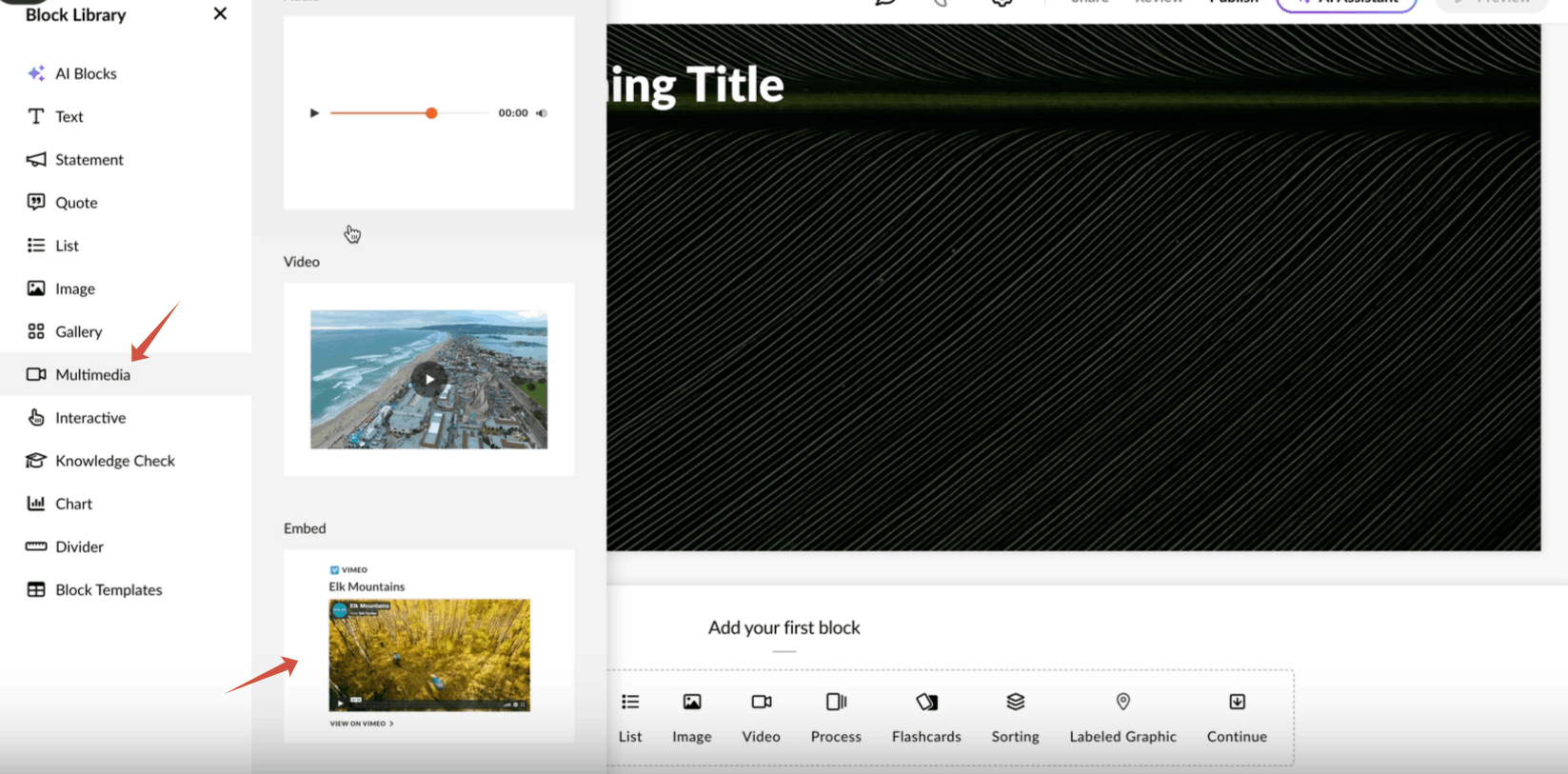
On your course slide, select or add a new content block. To do this, open the element library and select the” Multimedia” item, then select “Embed”.
You will see an editor where you can insert a link to the roleplay.
Step 3. Copy and Insert Your Roleplay Link
1. In the editor, click on content. The element editing menu will open.
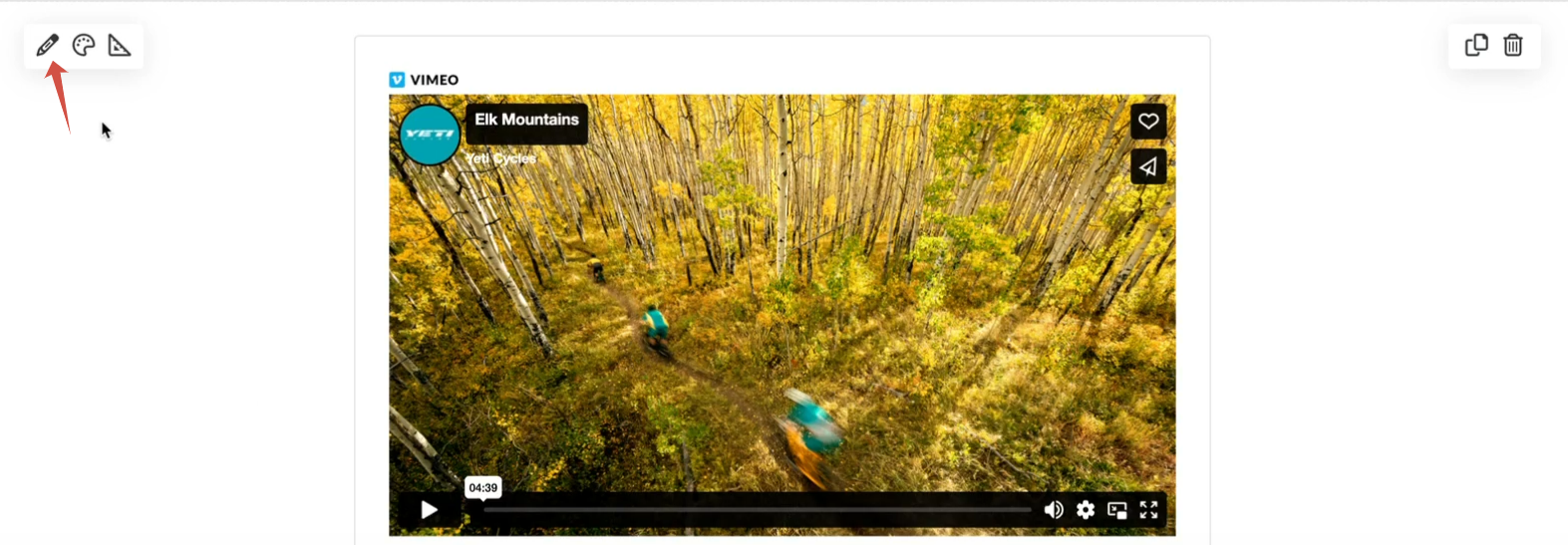
2. In the editor, click on content. The element editing menu will open.
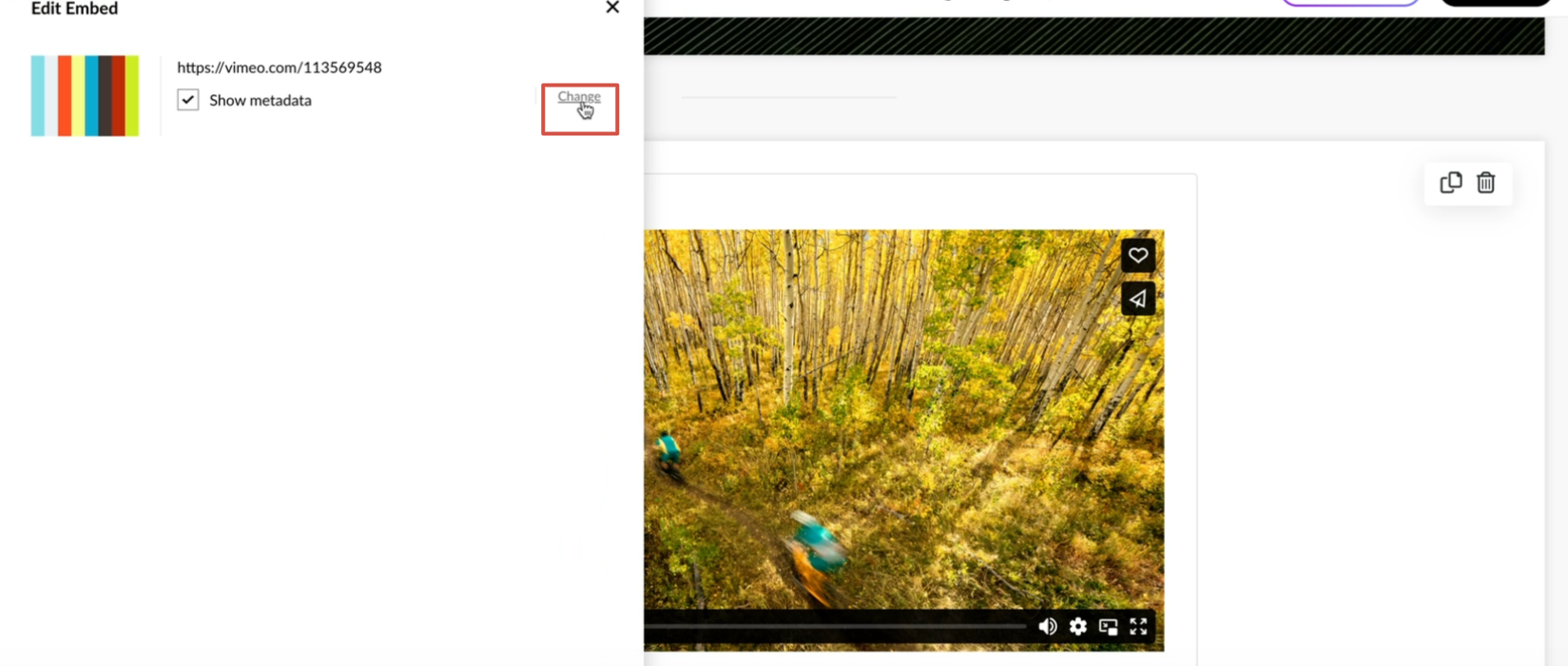
3. Click on the line with the link and paste <iframe src="link" allow="camera; microphone; fullscreen"></iframe> into the field.
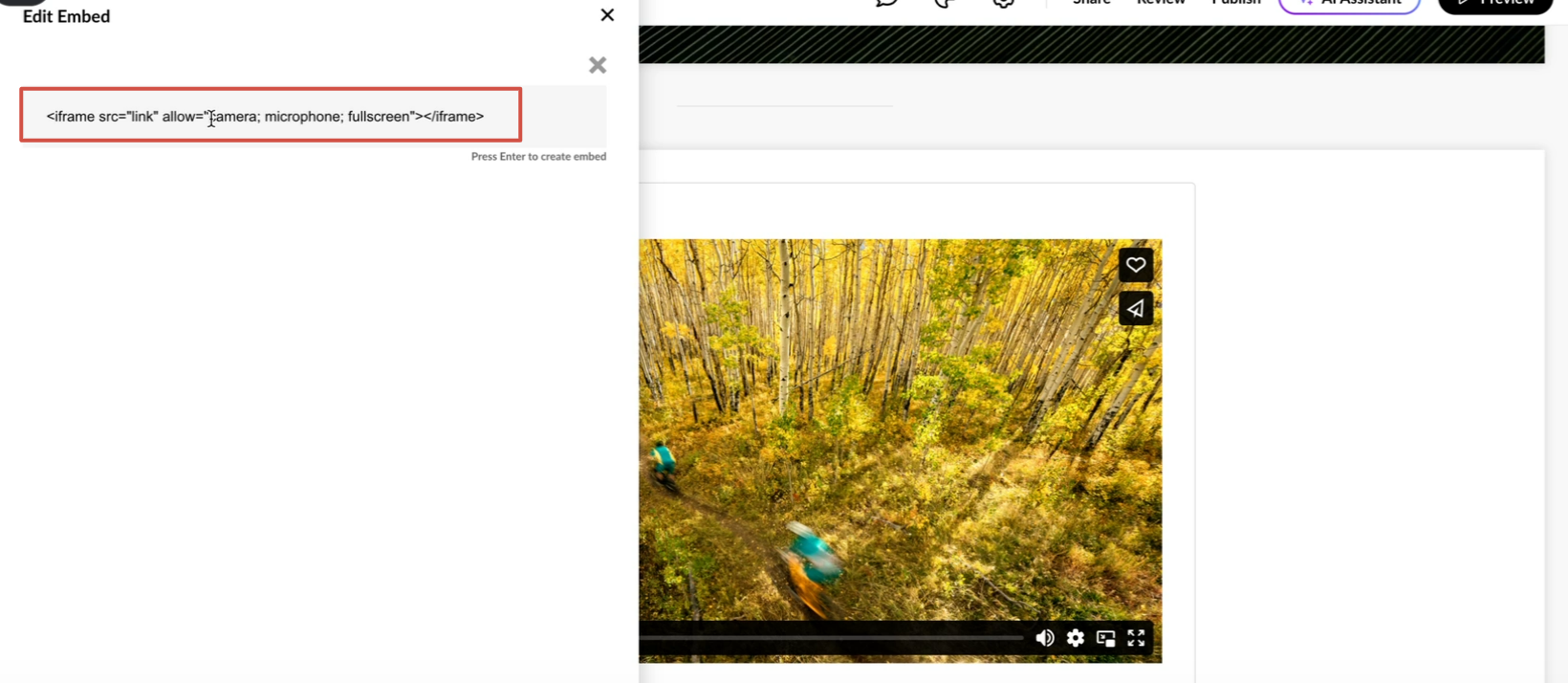
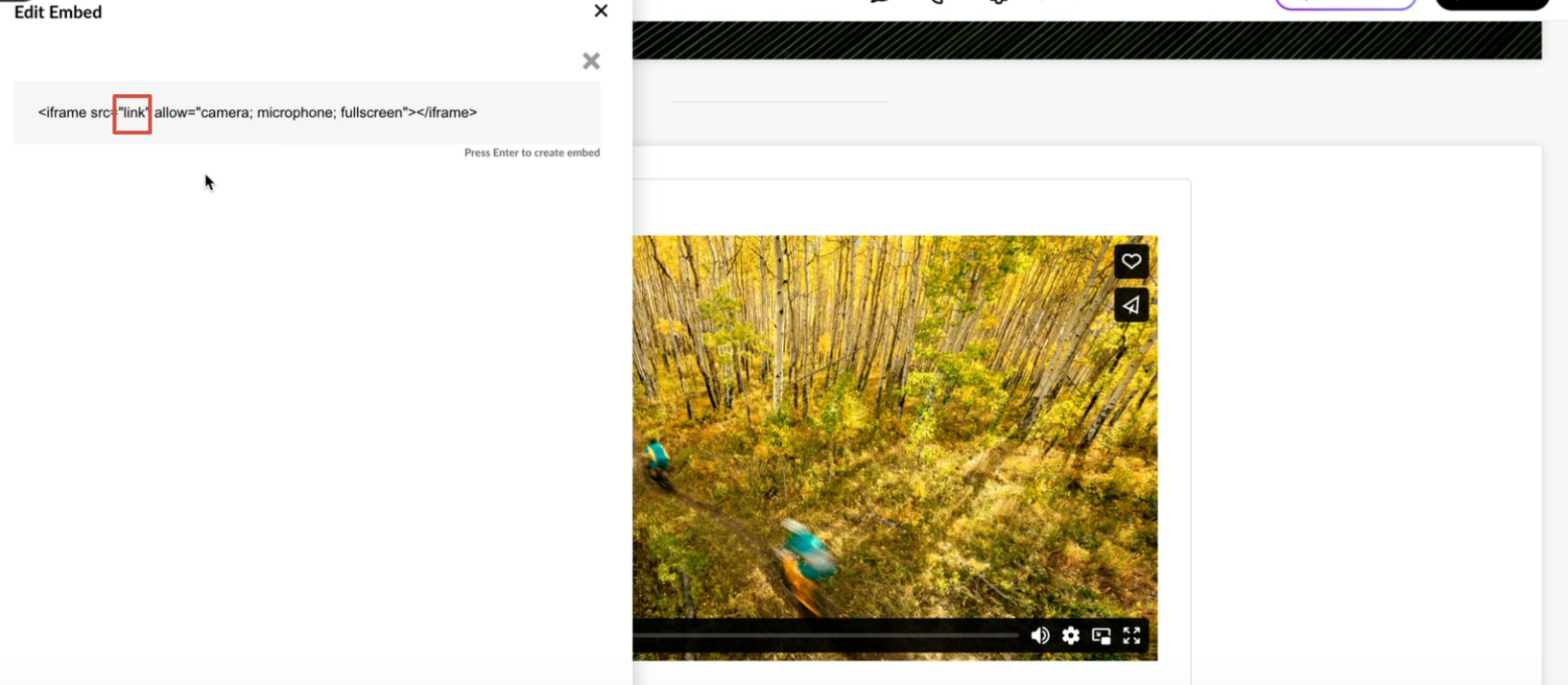
4. In the code line, delete the word "link". In its place, you will need to insert the link to the roleplay.
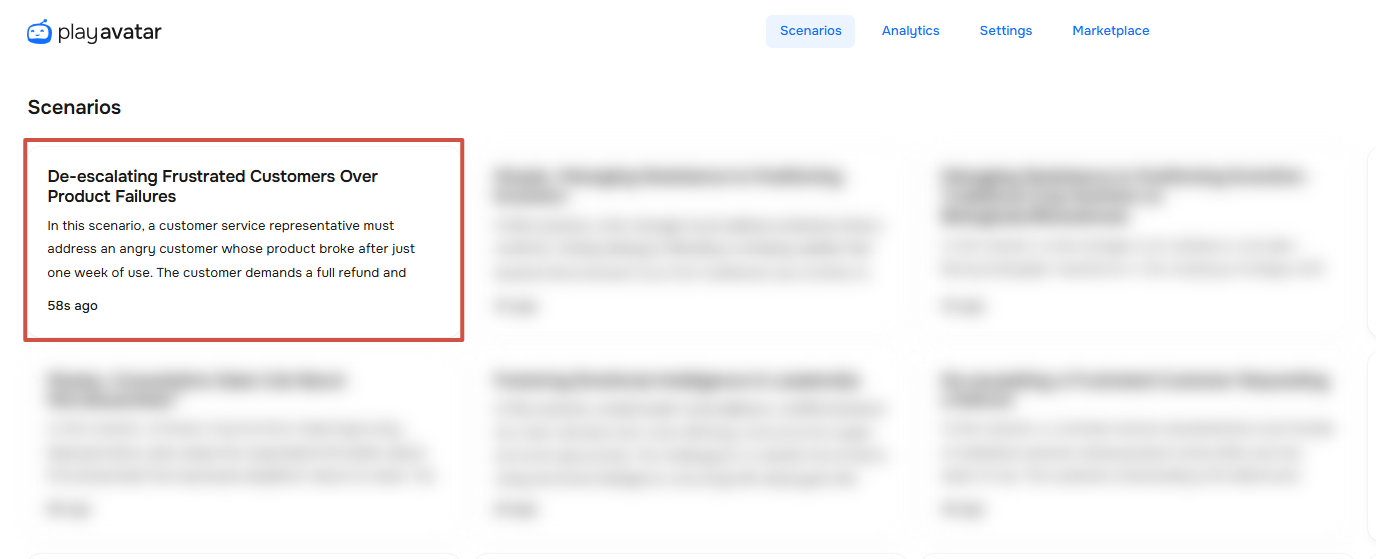
5. Go to PlayAvatar, find the roleplay you need, and open it.
6. On the roleplay page, click the “Copy Access Link” button.
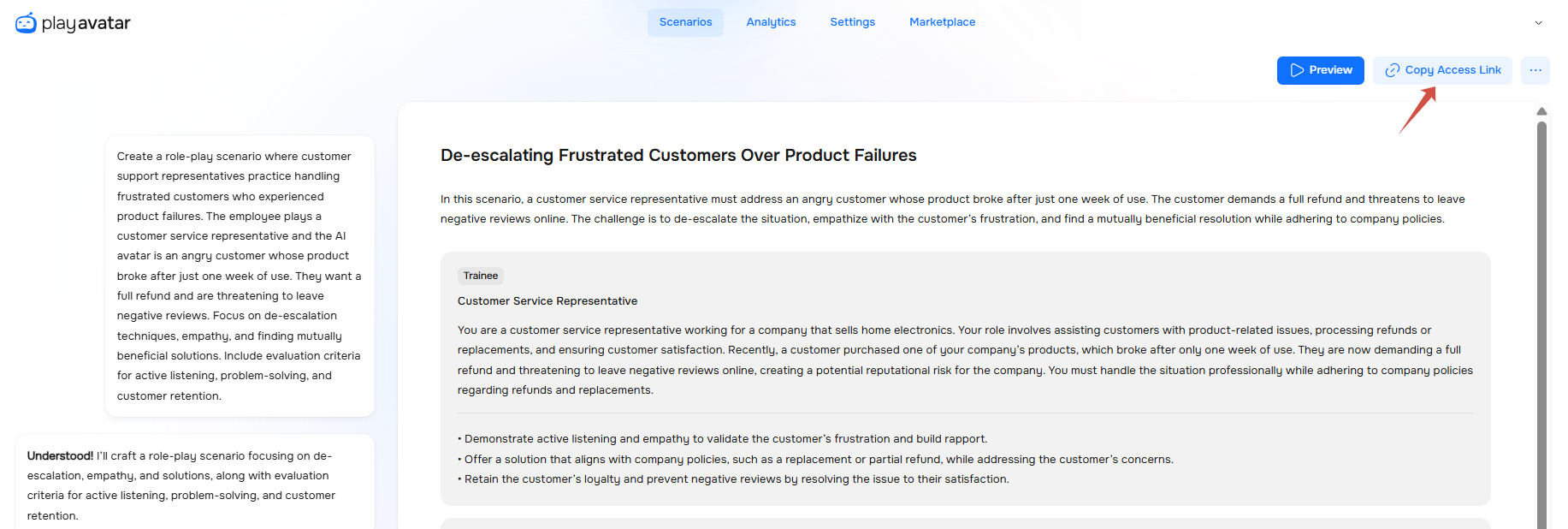
7. Return to the Rise 360 builder and paste the link into the address bar.
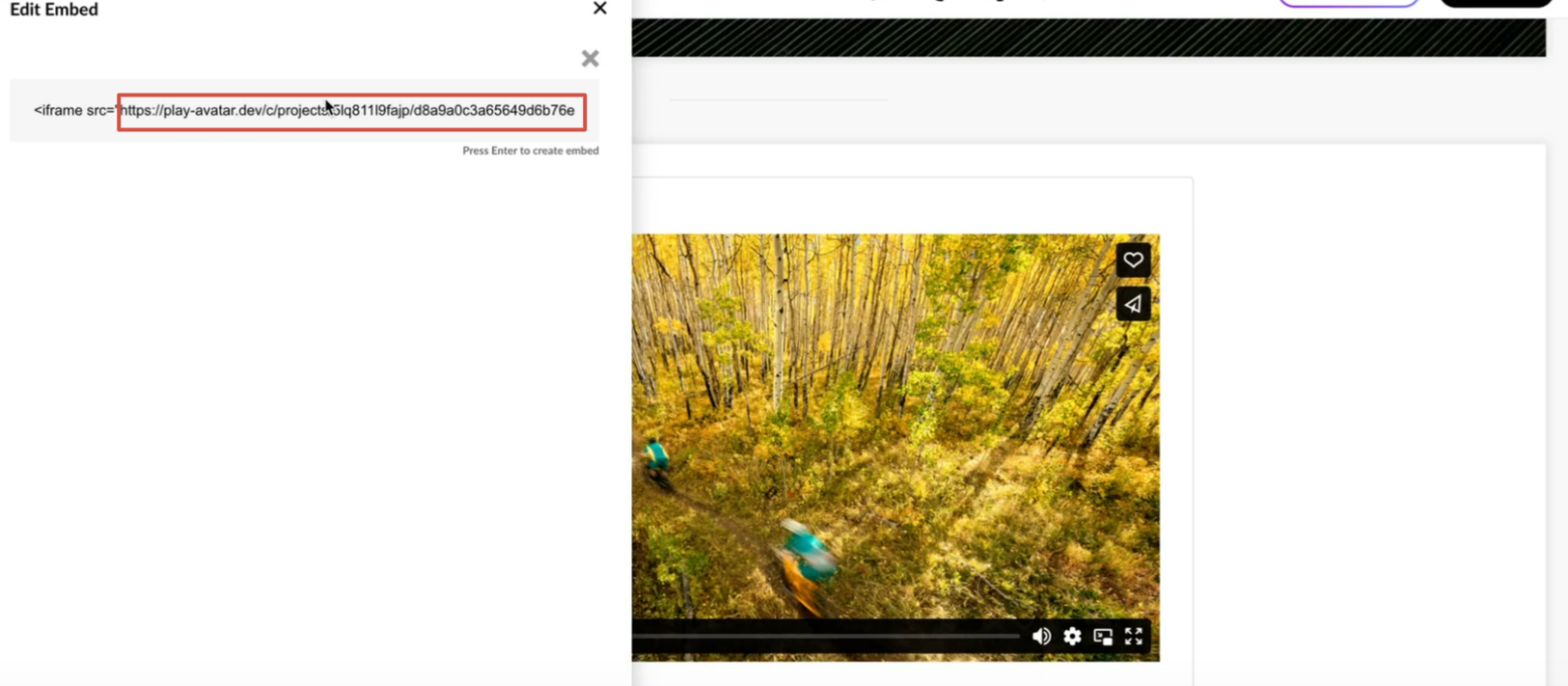
Press Enter on your keyboard. The link will pull in the roleplay and it will appear in the editor.
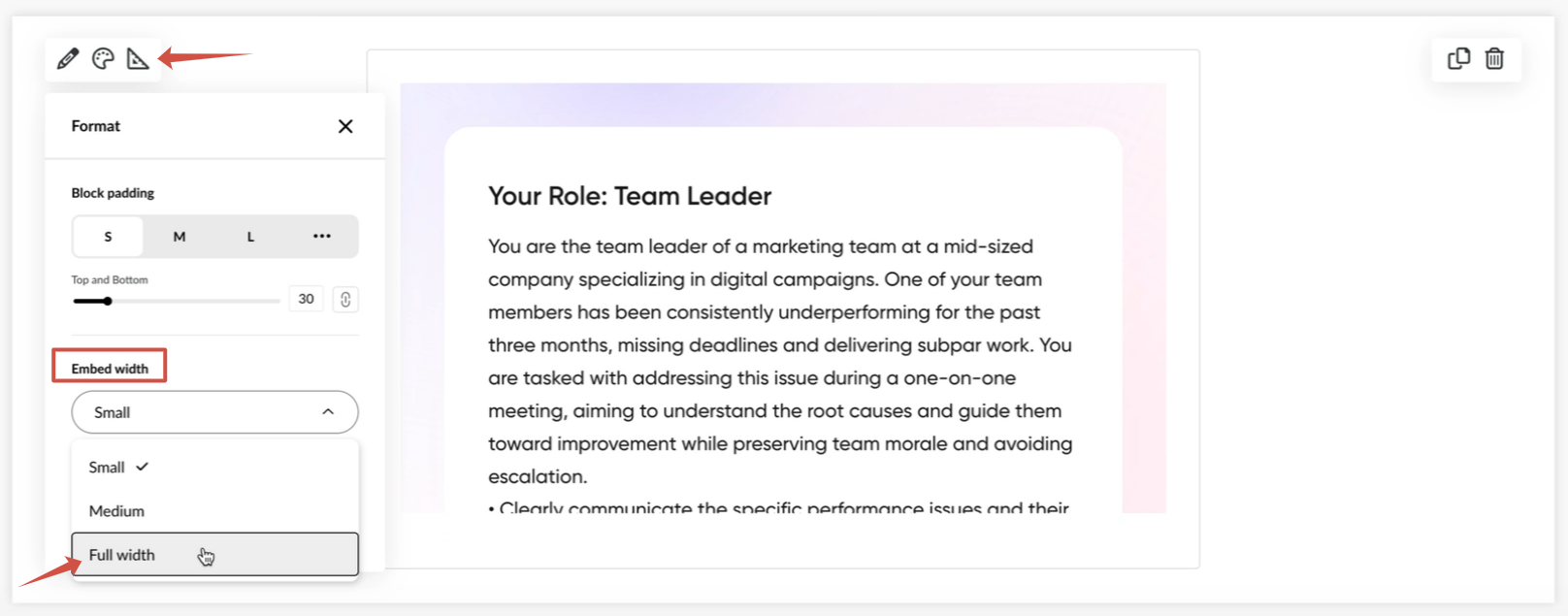
If you want to change how the roleplay is displayed in the builder, then click on format and select "Full width" in the "Embed width" field. This way, it will look exactly the same as on the PlayAvatar platform.
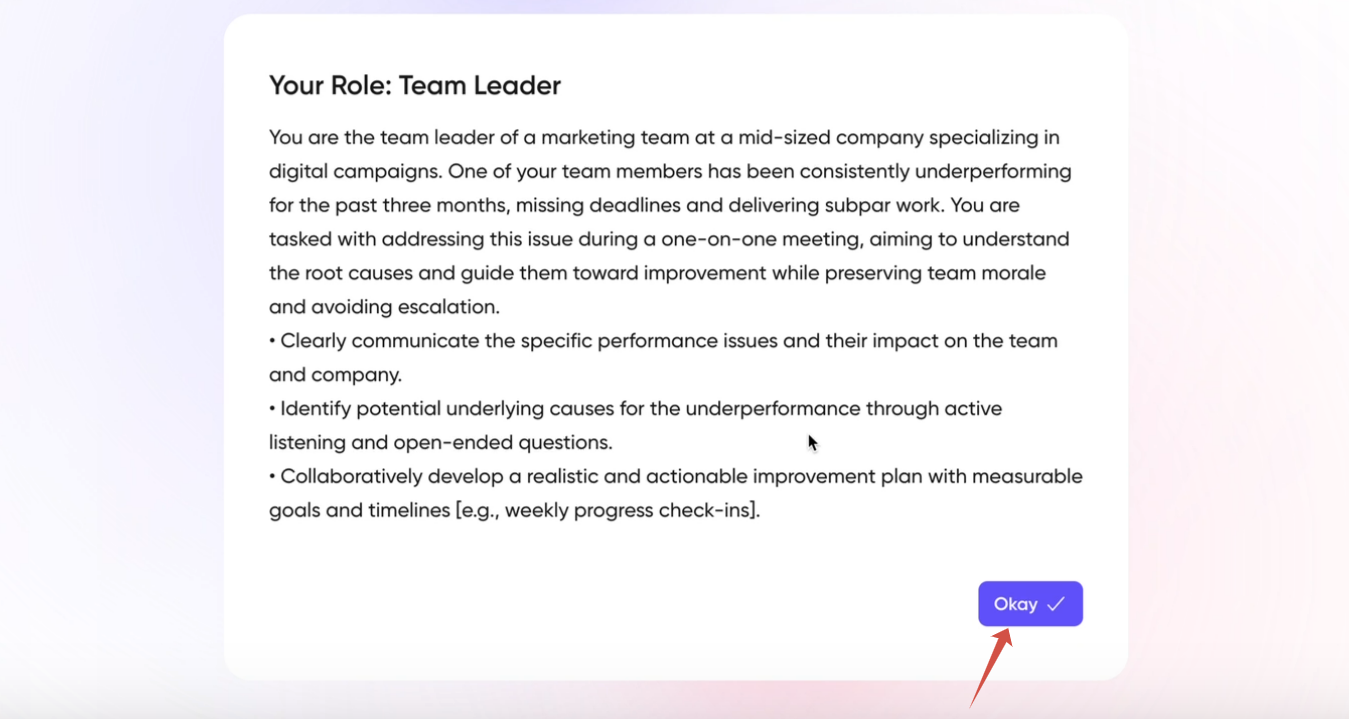
Click the “Okay” button to test the operation of the roleplay.
💡 You can also add a roleplay using a ZIP file from PlayAvatar.
✨ We have also recorded a video on how to add a roleplay scenario to Rise 360. You can watch it here.
Need Help
Write to us in the chat — we're always happy to help 💬