
Scenario Analytics
The Scenario Analytics page shows trends and dynamics of all roleplays launched within your selected scenario. This data helps you identify which scenarios perform best and decide whether to refine or assign them to more employees.

The data available to you depends on your role:
Administrators can view data on all authors within their organization.
Authors only have access to their own scenarios.
Filters
Filters are located at the top of the page. They allow you to narrow down the data and focus on your key scenarios:
Search — start typing a scenario title, and the list will filter automatically.
Author (visible only to administrators) — select one or more authors to view data for their scenarios.

To return to the default settings, click the “Reset all” button.

⚠️All data shown in the widgets and the table update based on your selected filters. For example, if you filter by a specific author, you'll only see the summary for their scenarios.
Widgets
The widgets provide a high-level overview of the filtered scenarios. These metrics are useful for quick comparisons. For instance, if the average success rate is low, it might be worth revisiting the scenario’s difficulty or logic.

| Widget | What it shows |
|---|---|
All Participants | The number of unique participants who have played roleplays. If the same person played a scenario multiple times, they are only counted once. |
Completed | The average percentage of roleplays completed. This includes scenarios with the statuses "Completed with report" and "Enabled, no report." |
Completed Successfully | The average percentage of roleplays passed successfully. A result of 70% or higher is considered successful. |
Score | The average score earned by participants. |
Skill Gain | Change in the overall score across all scenarios. An improvement is indicated by a ➕ sign, while a decline is indicated by a ➖ sign. |
Time | The average roleplay completion time. |
Data Table
Below the widgets, you'll find a table with metrics for each individual scenario. The table helps compare scenarios against each other. For example, which ones are used more often, and which are completed more successfully and faster.
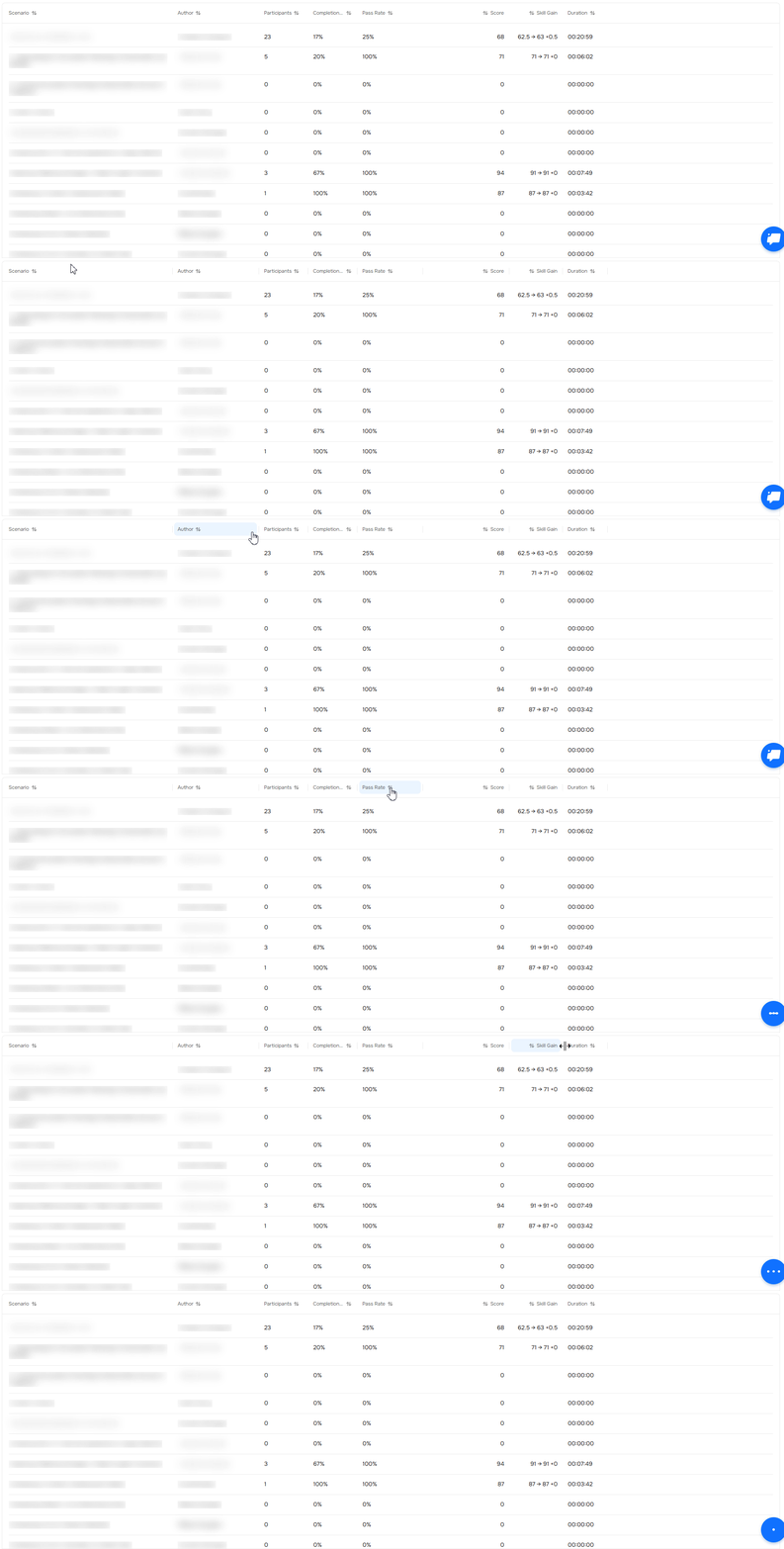
To sort the data by any parameter, click on the column header.

Table Columns
| Column | What it shows |
|---|---|
Scenario | The name of the scenario. |
Author | The author of the scenario. |
Participants | How many people have completed this scenario. |
Completion Rate | The average completion rate for roleplays based on this scenario. |
Pass Rate | The average success rate for roleplays based on this scenario. |
Score | The average participant score for this scenario. |
Skill Gain | This metric reflects the change in the overall score between the first and last attempt at the roleplay. An improvement is indicated by a ➕ sign, while a decline is indicated by a ➖ sign. |
Duration | The average completion time for roleplays based on this scenario. |
Analytics Report
For your convenience, you can export the analytics data as an Excel file. To do so, click the “Download Report” button.
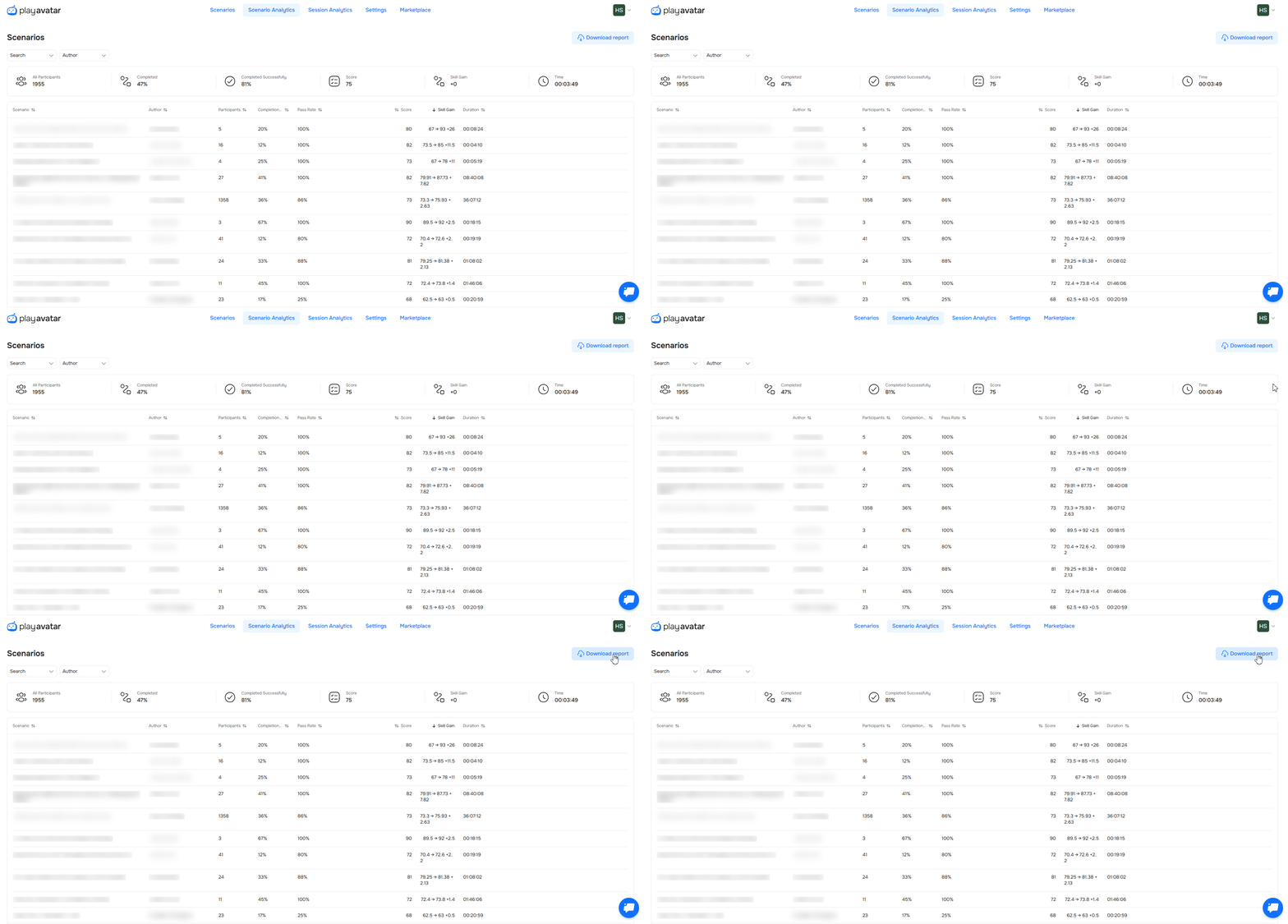
⚠️ The report will include all the information displayed on the analytics page. For example, if you have selected a specific author, the report will only contain data for their scenarios. If you have not applied any filters by scenario name or author, the report will include all the information available to you in the analytics section.
Need Help
Write to us in the chat — we're always happy to help 💬