
Analysis of a Scenario
📚 Before You Read
If you haven't seen the main analytics page yet (the one that covers all scenarios), start with the article "Scenario Analytics".
Here, we'll take a detailed look at one specific scenario.
How to Access a Scenario's Analytics Page
On your organisation's scenario list, click any scenario. That takes you to its detailed analytics page.
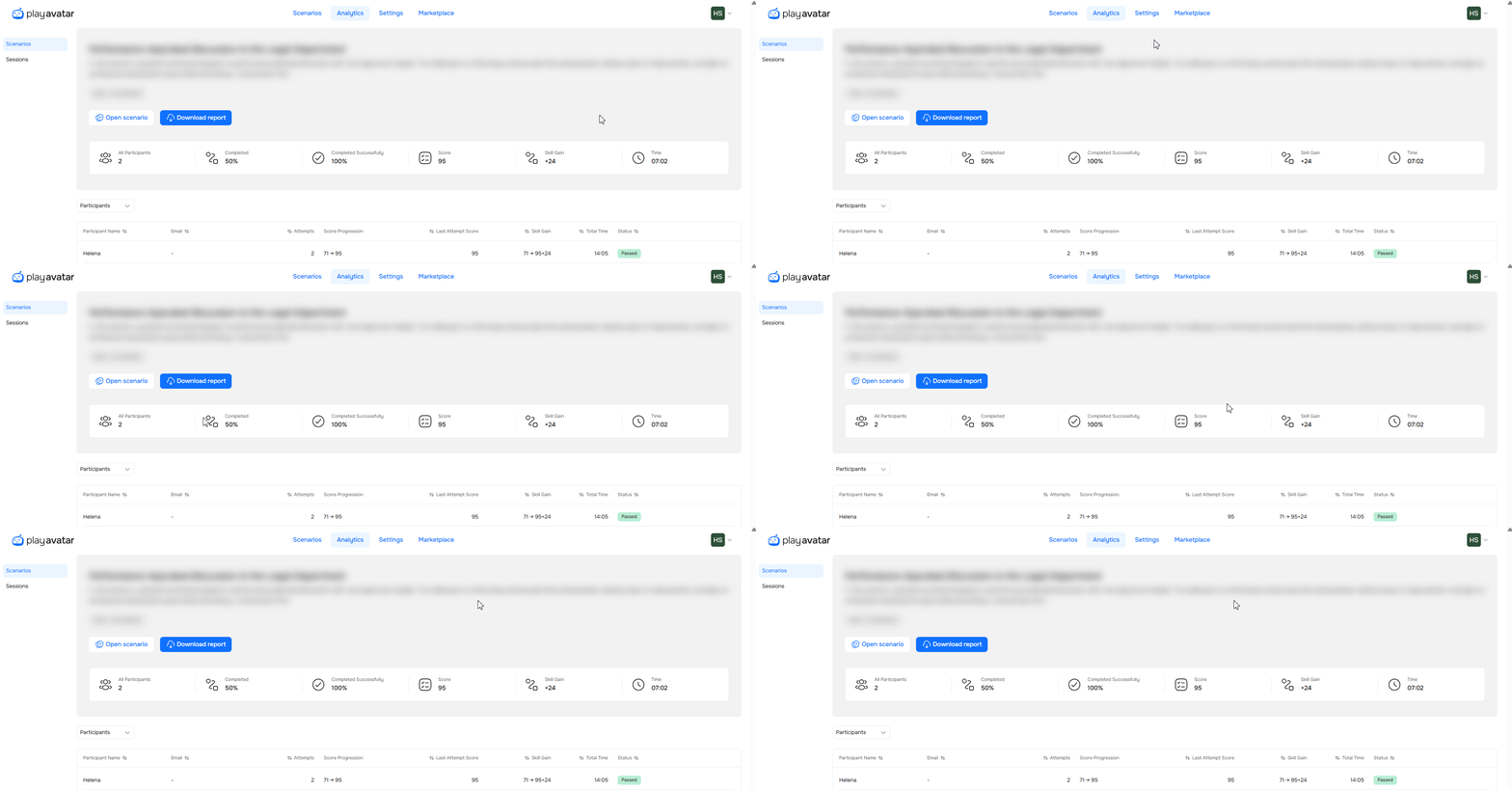
At the top, you'll see the scenario's name, a short description, and who created it.
The "Open Scenario" Button
This button is at the top of the page. Click it to jump straight to the scenario editor. From there, you can make changes, save a new version, and run the roleplay again. It's handy when you want to tweak a scenario based on the data you've collected.
The "Download Report" Button
Click "Download Report" to save all the data so you can work with it in Excel.
The screenshot below shows an example of what the downloaded report looks like.

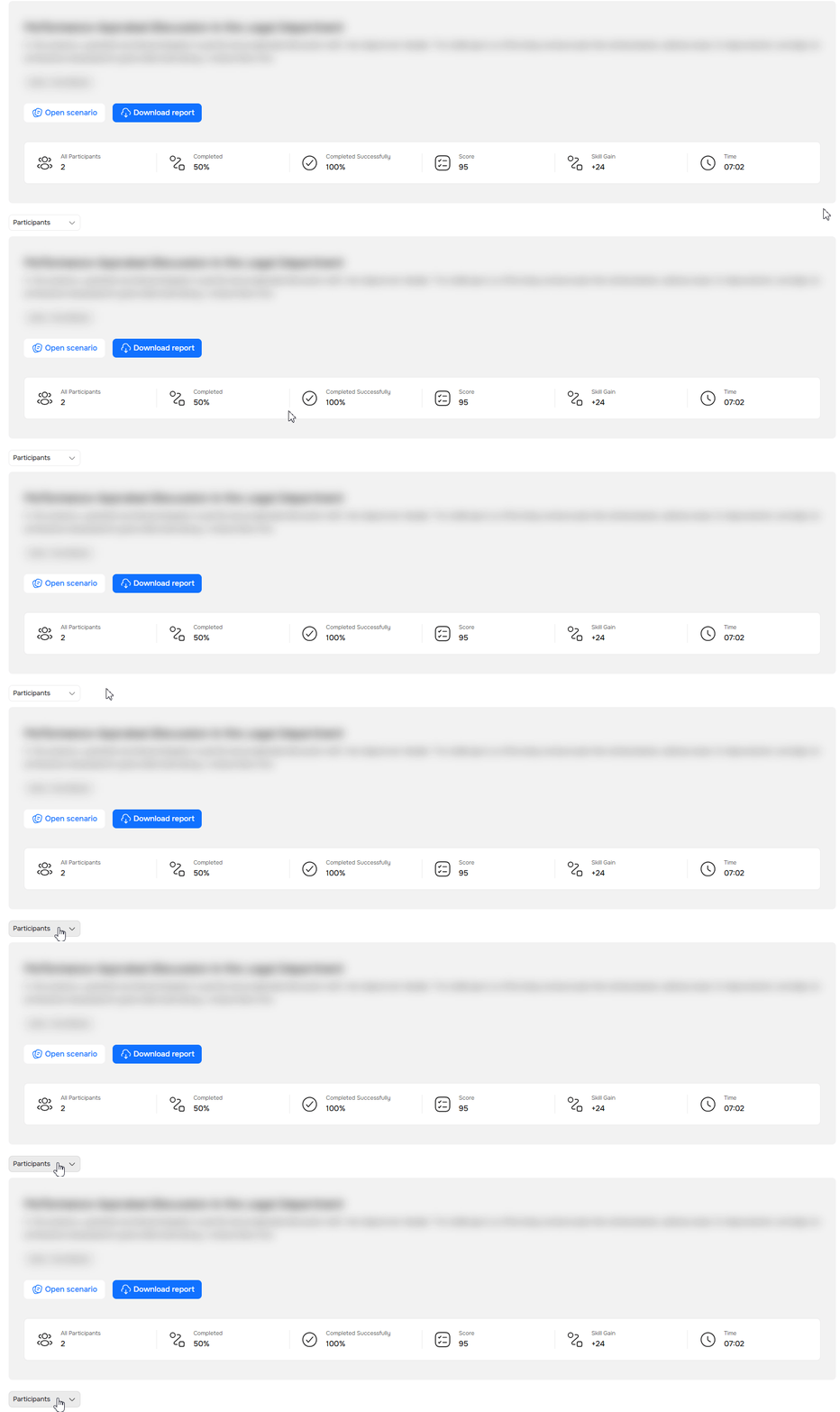
Widgets with Overall Statistics
Right below the buttons, you'll see several widgets. These give you high-level numbers for the whole scenario, not broken down by participant.

The table below explains what each widget shows.
| Widget | What It Shows |
|---|---|
All Participants | How many people have completed this scenario's roleplay. If the same person runs it multiple times, they're counted once. |
Completed | Average completion rate. Includes reports with the statuses "Completed with report" and "Enabled, no report." |
Completed Successfully | Average success rate. Anything 70% or higher counts as successful. |
Score | The average number of points earned by all participants. |
Skill Gain | Shows how the overall score across all scenarios is changing. An increase is indicated by a ➕ sign, a decrease by a ➖ sign. |
Time | Average time to finish the roleplay. |
Participant Filter
Above the table, there's a filter. Use it to quickly pull up data for a specific participant.
Click the filter to see the full participant list. Check the boxes next to the people you want, or search by name or email (if an email is available).
Table with Data per Participant
Below the widgets and the filter is the main table. It shows detailed info for everyone who has started this scenario at least once.

Let's look at the table below to see what each column means.
| Column | What It Means |
|---|---|
Participant Name | The participant's first and last name. If no name was entered, you'll see "No Name Provided." |
The participant's email address. If none was provided, you'll see a dash (—). | |
Attempts | How many times the participant has run this scenario. |
Score Progression | Shows how their score changed between attempts. If there's progress, you'll see an arrow and numbers, e.g., 71 → 95. If the score stayed the same, you'll see just one number, e.g., 71. If there's only one attempt, there's no progression, so you'll also see just one number (the score for that attempt). |
Last Attempt Score | The result from the participant's most recent attempt. |
Skill Gain | How the participant's overall score across all scenarios is changing. An increase is indicated by a ➕, a decrease by a ➖. For example, if a participant scored 71 points previously and scores 95 this time, you'll see +24. |
Total Time | How long the participant took to finish this scenario's roleplay. |
Status | Where they are in the roleplay completion process. |
Need Help
Write to us in the chat — we're always happy to help 💬