
Getting Started in PlayAvatar
Before you start
Check that your device is ready. PlayAvatar works in all modern browsers—all you need is a stable internet connection and an up‑to‑date browser version.
📚 Detailed device and browser requirements are in the article “System Requirements".
📚 If you would like to explore the matter further, here is an article on how we protect data and why you can trust the platform.
How to access the platform
After your company pays for the access, we’ll activate your account.
The email comes from the address PlayAvatar. Inside it, you will find: a login link, your username (email), and a temporary password.
⚠️The email will arrive immediately, even if the subscription start date hasn’t yet come—for example, if you subscribed from the beginning of the month. You will be able to log in to the platform at any time, but creating scenarios and running simulations will only be possible after the subscription period begins.
What to do if the email does not arrive
Check your Spam folder—sometimes the email ends up there. If there’s nothing there either, write to the support chat.
📌In your message, specify:
- That access has not arrived or you have lost your login credentials.
- Your email address that should be registered for the account.
- Your role in the system.
We’ll create a one‑time access and send it directly in the chat.
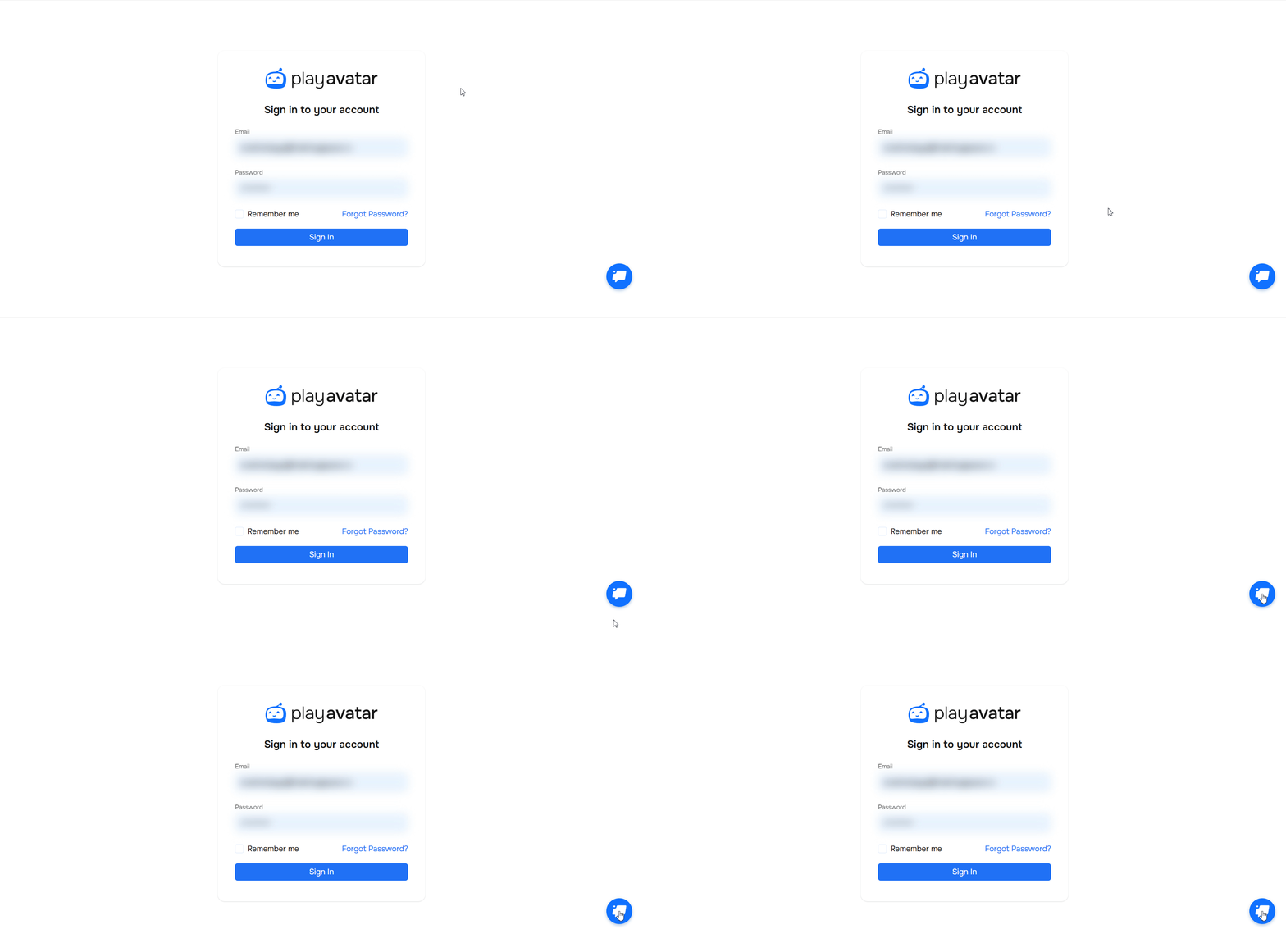
The support chat is located in the lower right corner of the Verbo main page.
How to log in for the first time
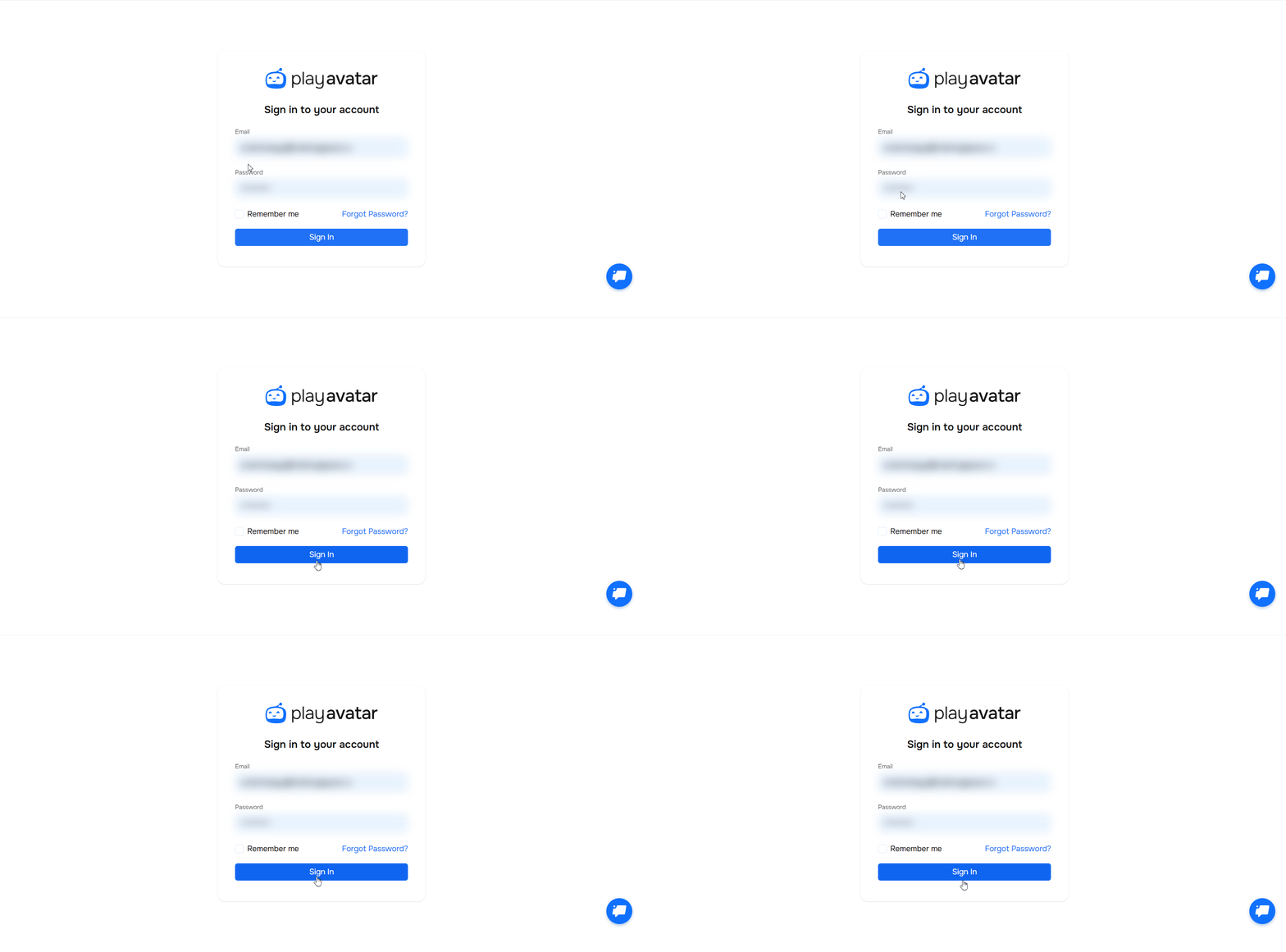
- Follow the link from the email.
- Enter your email and temporary password.
- Immediately change the temporary password to your permanent one. The system will prompt you to do this upon first login—this is more secure.
- Click the “Sign In” button.
Need to add a new employee or change the account owner
To add a new employee or change the account owner, write to us in the chat.
📌In your message, specify:
- Employee’s full name.
- Their work email.
- Your organization’s name.
- Which role to assign, for example, Author or Administrator.
We’ll create the account, and your colleague will receive an invitation email.
📚 To understand the roles and permissions, read the article “Roles in the System and User Access”.
Need Help
Write to us in the chat — we're always happy to help 💬